Airtable Payment Reminder Calendar with Google Calendar Sync
Build a multi-date Airtable payment reminder calendar for due dates, cancellations, and trip windows, then subscribe via iCal so every deadline appears in Google Calendar—without missed cutoffs.
If you manage reservations, hotels, or vendor contracts, you’re juggling dozens of overlapping deadlines: payment due dates, cancellation cutoffs, and trip windows. Build a multi-date, color-coded Airtable payment reminder calendar and sync it to Google Calendar so every deadline shows up in your daily schedule.
Photo by Eric Rothermel on Unsplash
Why a Dedicated Reminder Calendar?
Most Airtable bases store date fields inside separate tables (Reservations, Trips, Flights). When a critical date is buried in a Reservations record you rarely open, it's easy to miss a hotel cancellation window or a final payment deadline.
A consolidated calendar view in Airtable solves this by surfacing every date type — across all reservations — in a single scrollable timeline. Syncing it to Google Calendar means you see these reminders alongside your normal schedule without switching apps.
Step 1: Add Lookup Fields to Your Trips Table
Your Trips table is likely already linked to a Reservations table. If it is, use lookup fields to pull the key date columns from Reservations into Trips:
Payment 1 Due (lookup from Reservations → Payment 1 Due field)
Final Payment Due (lookup from Reservations → Final Payment Due field)
Cancellation Date (lookup from Reservations → Cancellation Date field)
This consolidates all deadline types into a single table — which is required before you can display them together in a Calendar view.
Note:Airtable's Calendar view can only display date fields from the same table. Pulling dates in via lookups is the standard workaround for multi-table setups.
Step 2: Create the Calendar View
Inside your Trips table, click + Add view → Calendar
Name it Reminder Calendar (or Deadlines)
Set the primary date field to your Trip Start date
Open Date fields settings and enable your lookup date columns (Payment 1 Due, Final Payment Due, Cancellation Date)
Each enabled date will now appear as a separate event block on the calendar for every trip record.
Step 3: Color-Code by Date Type
Color-coding makes it immediately clear what kind of deadline is approaching:
Date Type
Suggested Color
Urgency
Cancellation Date
Red
High — often non-reversible
Final Payment Due
Orange
High — affects trip viability
Payment 1 Due
Yellow
Medium — first installment reminder
Trip Start / End
Blue
Informational context
In the Calendar view, use Color by → set conditional rules based on the date field each event represents. This lets you scan a month at a glance and immediately spot the critical red items.
Step 4: Sync to Google Calendar
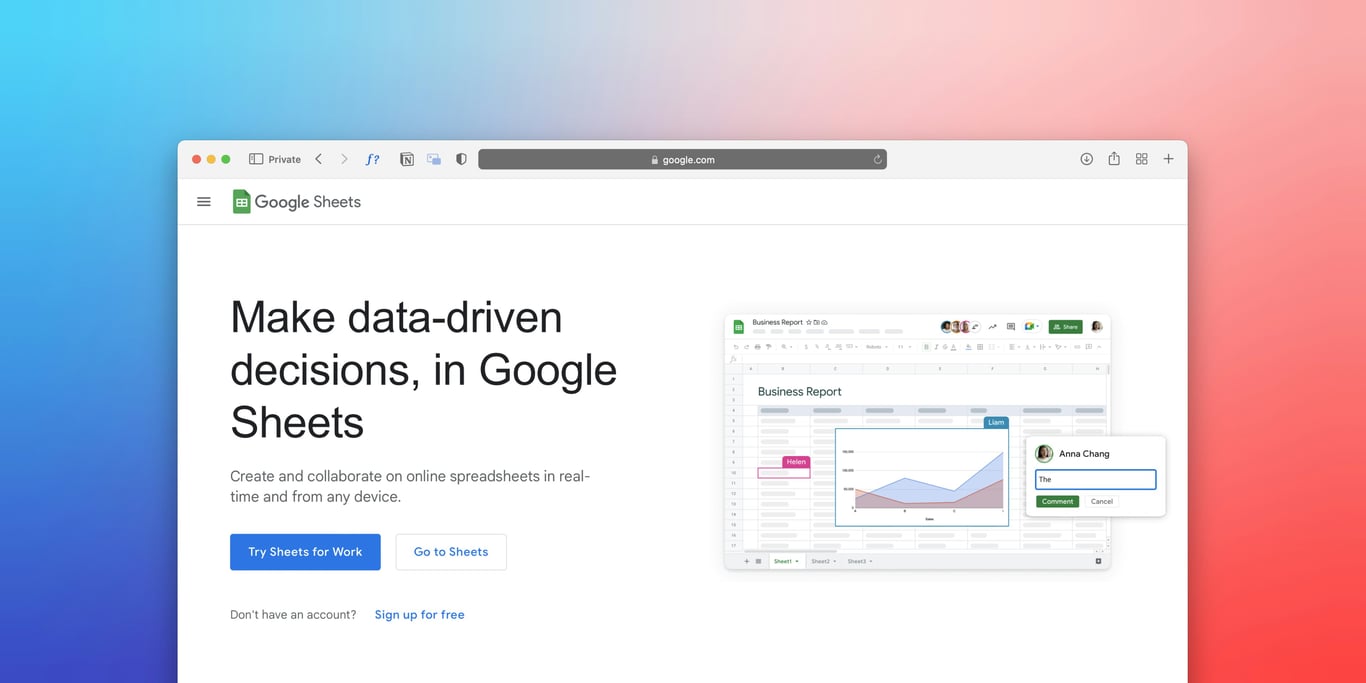
Airtable calendar views can be subscribed to in Google Calendar via an iCal feed:
In your Calendar view, click the Share button (or gear icon) → Copy iCal URL
Open Google Calendar → click + next to Other calendars → From URL
Paste the iCal URL → click Add calendar
Name it (e.g., "Airtable Reminders") and assign a distinct color
Your Airtable payment and cancellation deadlines now appear in Google Calendar alongside your other events.
Heads up: Google Calendar syncs iCal feeds on a delay — typically every 12–24 hours \(sync interval as of June 2026 — check Google Calendar settings if this has changed)**. For urgent updates, verify directly in Airtable.
Step 5: Add an Automation Fallback for Empty Fields
If a date-triggered automation depends on a field that isn't filled in by the trigger date, the automation silently fails. A common example: a post-trip email sequence triggered by a Google Photos album URL being added to a Trips record.
Add a fallback automation in Airtable to prevent this:
Trigger: Scheduled — X days before trip end date
Condition: If the required field (e.g., album URL) is empty
Action: Update the field with a placeholder value (a hyphen "-" works well)
The placeholder satisfies the "field is not empty" condition that downstream automations check, so your email sequence fires on schedule even if the real value hasn't been entered yet.
The Result: One Calendar, Zero Missed Deadlines
With this setup, you get:
Color-coded deadlines across all reservations in a single monthly view
Google Calendar sync so reminders appear in your daily workflow
Automation fallbacks that keep email sequences running even when data is incomplete
For tour operators managing multiple simultaneous trips, this kind of consolidated visibility prevents the expensive missed cancellation window or the unhappy traveler who never received their post-trip email.
Get help building this in Airtable
Setting up multi-table lookups, color-coded calendar views, and iCal syncs usually breaks at the Google Calendar step or when the automation conditions don’t fire as expected. If you’re stuck, book a ZoomFlow session — one of our consultants will build it with you live and make sure the whole pipeline fires correctly.
Build an automated crawler that finds broken links and missing images, logs each issue to Notion, and routes fixes to an owner, so you skip the manual audits.