Plan an Airtable to Softr migration without disrupting operations. Map dependencies, test privately, validate workflows, and cut over on your schedule.
An Airtable to Softr migration is safest when you run it as a staged systems change, not a one-time database import. Start by documenting your Airtable schema and automation dependencies, build a private Softr copy, validate records and workflows in parallel, then switch users over during a planned operations window. AI can speed up the mapping and documentation work, but every important dependency still needs a human check.
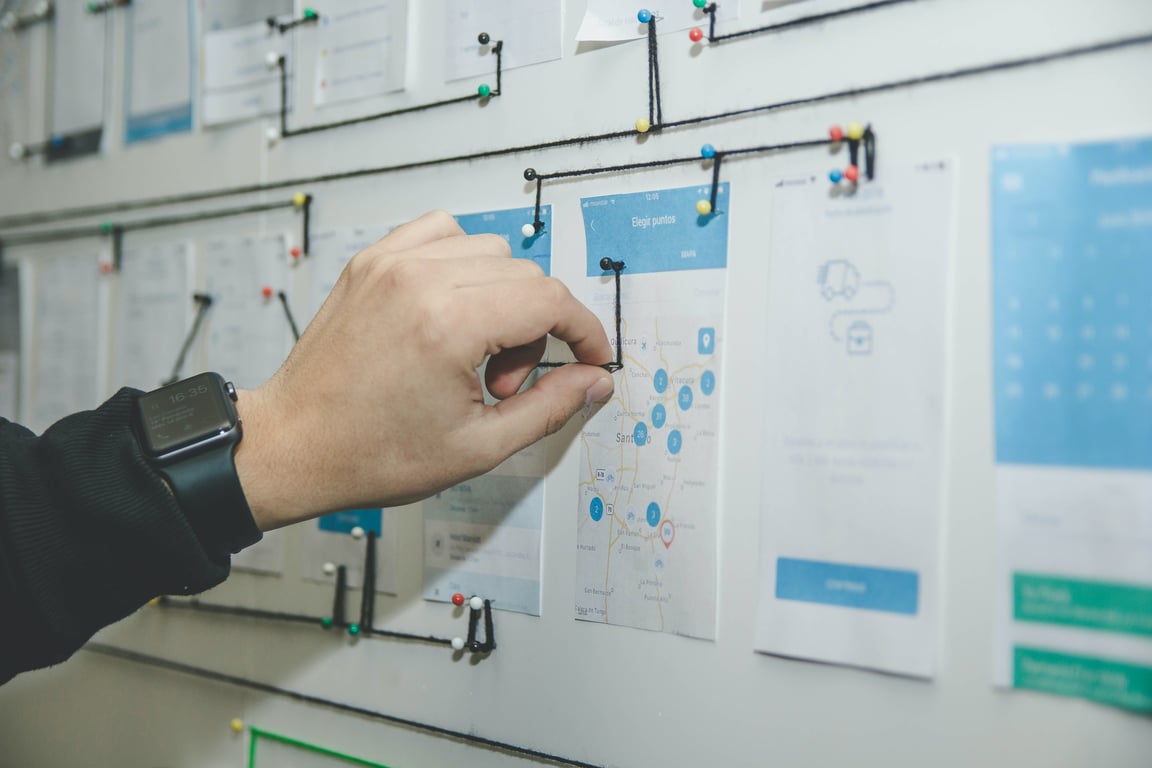
Planning an Airtable to Softr migration on a whiteboard. Photo by Alvaro Reyes on Unsplash
Why plan an Airtable to Softr migration?
Airtable usually still works. The problem is the system around it. Over time, teams pile up formulas, linked records, forms, Make scenarios, webhooks, and workarounds that few people fully understand. A migration lets you move the database layer and clean up how the business actually runs at the same time.
Softr can import an Airtable base into Softr Databases without modifying the original base (as of October 2026, per Softr's docs). Its migration guidance recommends checking linked records, formulas, lookups, rollups, attachments, and system fields after import. That makes a staged approach possible: keep Airtable available while you test the new system instead of forcing an immediate cutover.
You don't need to recreate every old workaround. Keep the workflows that matter, replace the fragile pieces, and end up with a system your team can explain and maintain.
Step 1: Inventory the current Airtable system
Before moving data, create a complete inventory of the source system. Do not rely on the tables you remember using most often. Include the fields and automations that may be invisible during a normal day.
Document the data model
For each Airtable table, capture:
Table name and purpose
Primary field and record identifiers
Linked-record relationships
Formula, lookup, rollup, and conditional fields
Attachments and long-text fields
Created time, last modified time, and other system fields
Views, filters, permissions, and interfaces that people depend on
Record the business meaning of important fields, not just their names. A field called Status may control a client email, a task assignment, a payment reminder, or a Make router. That context is part of the migration specification.
Map the automation layer
Next, list every scenario in Make that reads from or writes to Airtable. For each scenario, document its trigger, actions, filters, routers, error handling, and downstream systems. Include scenarios that appear inactive. A disabled automation may still explain why a field exists or may need to be re-created later.
Also document Fillout forms, webhooks, scripts, scheduled jobs, API calls, and any other system that depends on Airtable. The output should be a dependency map that answers three questions:
What starts this workflow?
Which records and fields does it change?
What happens next, and who relies on the result?
Step 2: Use AI to accelerate dependency mapping
An AI assistant such as Claude AI can help turn scattered documentation into a repeatable migration plan. Give it exports, field lists, scenario descriptions, screenshots, and known business rules. Ask it to produce a structured inventory rather than a vague summary.
Useful outputs include:
A table-by-table schema reference
A field dependency matrix
A list of unused, duplicated, or broken automations
A map of triggers, conditions, and downstream effects
A migration checklist grouped by risk
A repeatable script outline for copying and reconciling records
A searchable troubleshooting guide for common workflow events
AI is most useful for finding relationships across a large system. It should not decide that an automation is safe to delete just because it has not run recently. Confirm ownership, business purpose, and historical exceptions before removing anything.
Step 3: Import and build Softr privately
Create the new Softr database and app without exposing it to users. If the system is business-critical, rehearse the import with a duplicate Airtable base or a representative data sample first.
Softr's import copies tables, records, linked records, and attachments into Softr Databases (as of October 2026). Its docs also recommend saving a rollback point in App History and reconnecting app blocks one at a time, because switching a block's data source resets some settings.
Keep the private version close to the existing experience at first. This gives you a stable comparison point. Improve the interface after the data and workflows are proven, rather than changing the database, permissions, forms, and user experience all at once.
Step 4: Validate data and workflows in parallel
A successful import is not the same as a successful migration. Use a validation checklist that compares the old and new systems.
Validate the data
Check:
Record counts by table
Linked-record relationships
Attachments and file access
Formula, lookup, and rollup results
Date, currency, and select values
Required fields and unique identifiers
Records created or changed during the test window
Sample both ordinary and edge-case records. A clean test record may not expose a missing relationship, an empty attachment, or a formula that depends on an unsupported function.
Validate the workflows
Run the business events that matter, such as a new registration, a changed trip date, a canceled record, a payment update, or a status transition. Confirm that the right messages, tasks, records, and notifications are created once, not twice.
If you are keeping Make in place, test each scenario against the new data source and confirm field mappings. Make has Softr modules for Softr Databases, including Database Record Added and Database Record Updated triggers (as of October 2026), so the automation layer can move over gradually instead of all on cutover day.
For every failure, record the input, expected result, actual result, and correction. Then re-run the test after the correction. This creates a migration record that another person can understand.
Step 5: Re-run the migration before cutover
Do not treat the first import as the final copy. Use the migration script or repeatable process to reconcile changes made while the systems were running in parallel.
A good repeatable process should identify new records, changed records, deleted or archived records, and conflicts that need review. Keep a log of what changed in each run. The closer you get to cutover, the more valuable a predictable reconciliation process becomes.
The original Airtable base should remain available until the new system has passed validation and the rollback window has ended. Softr describes its Airtable import as non-destructive, which supports this deliberate transition model.
Step 6: Cut over around the business calendar
Choose a transition window based on operational risk, not just technical readiness. Avoid the busiest season, major events, billing cycles, launches, and periods when the people who understand the system are unavailable.
A practical cutover plan includes:
Freeze or document last-minute changes in Airtable.
Run the final data reconciliation.
Verify record counts and high-risk workflows.
Point forms, app blocks, and automations to the new system.
Test the highest-value user journeys.
Monitor errors and support requests.
Keep the rollback plan and original data available for an agreed period.
Softr's app migration copies your app and connects the copy to Softr Databases while the original app and Airtable base stay unchanged (as of October 2026). You review the copy before switching users over, which is exactly the private parallel environment this plan depends on.
Build the automation map for ongoing maintenance
Migration is the right time to create documentation that stays useful after launch. Store the dependency map with the system, update it when a field or scenario changes, and make it searchable.
A well-structured automation map should let someone answer questions such as:
What changes when a trip date is updated?
Which workflow handles a new registration?
Where does this status value come from?
What downstream systems receive this record?
Which automations are safe to pause?
You can also turn the map into an AI skill or internal assistant with clear boundaries. It should cite the relevant workflow, explain uncertainty, and distinguish documented behavior from an assumption. That turns AI from a one-time migration helper into a maintenance layer for the new system.
Final checklist
Before you close the Airtable to Softr migration, confirm that:
The full schema and dependencies are documented.
Linked records, formulas, lookups, rollups, and attachments are verified.
Make scenarios and Fillout dependencies have been tested.
The private Softr app has passed representative user journeys.
A repeatable reconciliation process has been run successfully.
The cutover date avoids the business's highest-risk period.
Owners know how to troubleshoot the new system.
The old Airtable setup is available for rollback until the agreed window ends.
A migration does not have to be rushed because a platform is changing around you. Map the system first, test the replacement privately, and cut over when the business is ready.
Get help planning your migration
Airtable to Softr migrations rarely break in the import. They break in the automation layer, when a Make scenario, form, or webhook still points at the old base after cutover. If you want a second set of eyes on your dependency map or cutover plan, book a ZoomFlow session. One of our consultants will walk through your base and scenarios with you live.
Build a practical Cognito to Notion CRM integration with Zapier, CSV migration, Gmail filtering, and views that keep quotes, owners, and follow-ups organized.
A practical Salesforce to Airtable migration plan for CRM and production tracking: object audit, table mapping, status logs, dashboards, and permissions.
Fix Smokeball Outlook contact sync deduplication with fallback matching (email, then name, then phone) so updates hit existing contacts instead of duplicates.