AP invoice automation with QuickBooks and Zapier can remove the printing, re-keying, and manual packet assembly that slow down accounts payable. The most practical design automates document intake, file handling, data extraction, status tracking, and payment-packet preparation while keeping receipt verification and desktop ERP entry under human control.
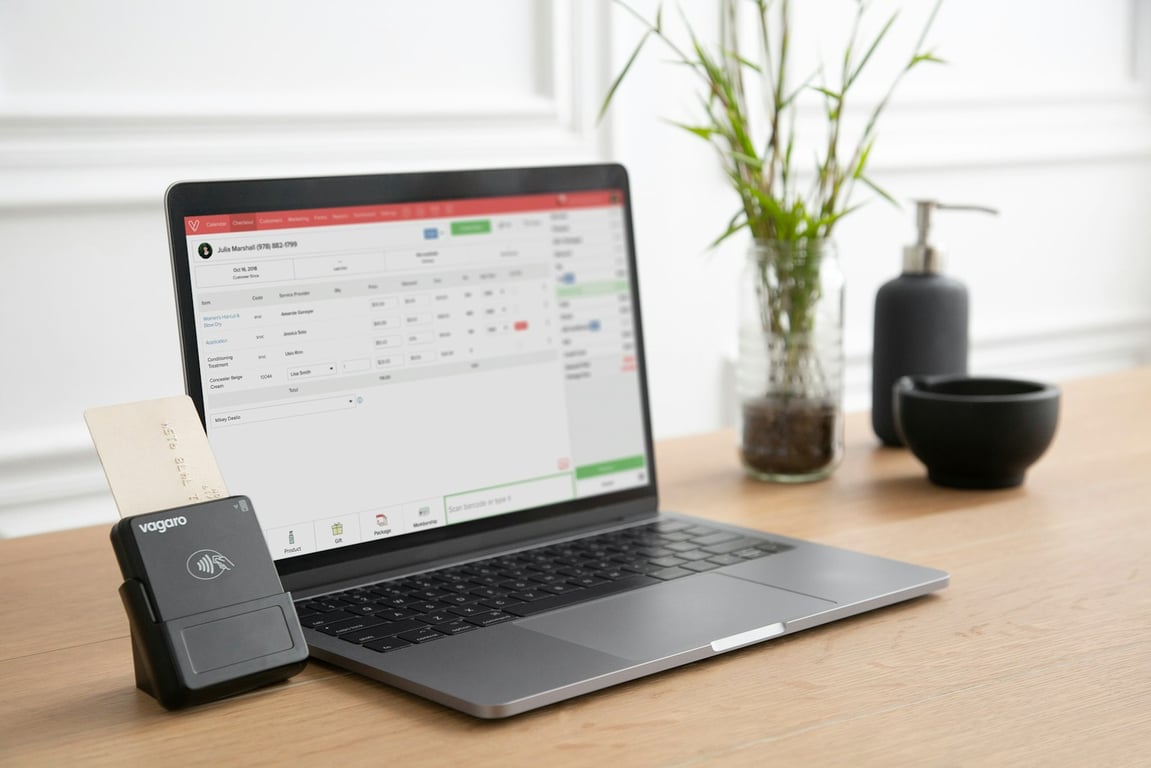
AP invoice automation with QuickBooks and Zapier: invoices and paperwork ready for review. Photo by 2H Media on Unsplash
For teams processing 100–200 invoices a month, that boundary matters. The goal is not to force every step into a cloud workflow. It is to automate the repeatable work around the accounting system and give the AP specialist a clear review queue.
How AP invoice automation with QuickBooks and Zapier works
Save, rename, and deduplicate the original files in a cloud-accessible drive.
Extract the invoice date, invoice number, amount, and PO number into Zapier Tables.
Review the extracted fields and complete the required receipt check in the desktop ERP.
Export the unpaid-bills report from QuickBooks, filter the payment run, and assemble a single packet with the matching PDFs.
Zapier coordinates the handoffs, but each stage should have a visible status and an exception path.
Step 1: Capture and organize invoices from email
Start with the accounting inbox as the intake point. When a message arrives with a PDF attachment, the automation should preserve the original file, apply a predictable filename, and place it in a Pending folder.
A filename such as Vendor Name - Invoice Number.pdf gives later steps a usable lookup key. If vendor names or invoice numbers vary widely, store normalized versions in the tracking table as separate fields instead of relying on the filename alone.
The workflow can also file the source email into a year-based folder after the attachment is saved. That creates a simple audit trail without asking the AP specialist to print, highlight, scan, and re-sort the same document several times.
Add duplicate protection before extraction
Internal forwarding can cause the same invoice to enter the inbox more than once. Check for an existing record before creating a new one. A practical duplicate key can combine vendor, invoice number, amount, and invoice date. If the key already exists, flag the new message for review rather than overwriting the original.
Keep duplicate handling visible. A duplicate or missing-field exception should be easier to find than a silent failure.
Step 2: Extract only the fields the reviewer needs
The first version of the workflow does not need every line item or description. Extract the fields that support the review step:
Vendor name
Invoice number
Invoice date
Total amount
Purchase order number
Source file link
Processing status
If most invoices contain selectable text, direct text extraction is usually simpler and more reliable than OCR. Reserve OCR or a separate exception route for scanned-image PDFs, photographs, or unusual Word documents. The important design choice is to avoid treating every invoice as an OCR problem when the source files already contain usable text.
Store the extracted data in Zapier Tables as the operational review queue. The table should make it obvious which records need attention and which files are waiting on a missing field.
Step 3: Make the manual ERP boundary explicit
The desktop ERP remains a human step when it is not available through a supported cloud interface or when the process requires a receipt check. The AP specialist can use the extracted fields from the table, confirm that the parts or services were received, and enter or verify the record in the ERP.
That is not a weakness in the design. It is a control point. Automating around the desktop application avoids unreliable screen automation and preserves the business decision that must happen before an invoice is posted.
Use a small set of statuses to keep the handoff clear:
Pending: the invoice has been captured and is waiting for review.
Posted/Pending Payment: the ERP review is complete and the invoice is eligible for a future payment run.
Fully Paid: the invoice has been included in a completed payment packet.
Exception: a duplicate, missing field, unmatched PO, or inaccessible file needs attention.
When the reviewer marks an invoice complete, the automation can move the PDF from Pending to Posted/Pending Payment and remove the record from the active intake view. Keep the original source email and file reference attached to the record so the decision can be traced later.
Step 4: Assemble payment packets from the unpaid-bills report
The payment run can stay deliberate without staying manual from end to end.
Export the unpaid-bills report from QuickBooks.
Remove items that should not be paid by check, such as in-house checks, wires, or manager holds.
Submit the filtered report through a simple form.
Match each remaining bill to its invoice PDF using vendor and invoice number.
Sort the files consistently and combine the report with the invoice PDFs.
Email the completed packet to the reviewer.
Move the included invoices to Fully Paid after confirmation.
Test the accounting export early to see whether bill attachments are included in the report. If they are not, keep packet assembly outside the accounting export: use the report as the index, retrieve the stored PDFs, and stitch the documents together in the required order.
This approach also gives the AP team a controlled place to remove exceptions before documents are assembled. The automation should not decide whether a manager hold or non-check payment belongs in the run.
OneDrive or SharePoint access is a prerequisite
A mapped network drive is not automatically available to a cloud automation. Before building the file steps, confirm with IT that the required folders are exposed through a supported cloud connection, such as OneDrive or SharePoint, and that the automation can read and write them.
Use the cloud folder as the system of record for the PDFs only after access, naming, permissions, and retention have been confirmed. If the drive cannot be reached securely, redesign the storage step before attempting to automate invoice movement.
Design choices that keep the workflow reliable
Give every invoice one tracking record
The record should hold the normalized vendor, invoice number, amount, dates, PO number, file location, source message, and current status. That makes lookups and exception handling more predictable than searching file names alone.
Make each step safe to rerun
A retry should update the existing record instead of creating a second invoice or moving a file twice. Use stable identifiers and check the current status before every move.
Separate automation from approval
The workflow prepares data and documents. A person still approves exceptions, confirms receipt, removes payment-run exclusions, and confirms when a packet is complete.
Start with a narrow pilot
Test the process with a small sample that includes normal text PDFs, a duplicate, a missing PO number, a scanned document, and an invoice that should not be paid by check. Confirm the file permissions and payment-packet order before expanding to the full monthly volume.
What this AP automation blueprint changes
The paper-heavy process becomes a digital queue with clear handoffs. Invoices arrive once, retain their original files, and move through Pending, Posted/Pending Payment, and Fully Paid without repeated printing and scanning. The desktop ERP and receipt decision remain where they belong, while email filing, extraction, duplicate checks, file movement, and packet assembly become repeatable automation steps.
That model fits an accounting department that needs better visibility without replacing the controls that make payment processing safe.
Get help building this
AP automation usually breaks at the edges: duplicate invoices, scanned PDFs, a network drive the cloud can't reach, or a payment packet that comes out in the wrong order. If your AP process still depends on inbox searches and manually assembled payment packets, book a free consulting call. A Connex consultant will map your intake, review, and payment steps with you and show where QuickBooks and Zapier can take over the repeatable work.
Learn how to automate a QuickBooks ShipStation invoice integration, trigger orders at the right stage, map SKUs and addresses, and test fulfillment safely.
Build a reliable Netlify form to QuickBooks invoice Zapier workflow. Trigger from Netlify form submissions (not email parsing) to prevent duplicate invoices.