Adding a Notion database to Notion Calendar gives teams a visual, date-based view of schedules, projects, or team availability — without leaving Notion. Here is exactly how to set it up, and how to automate the data entry that makes it useful at scale.
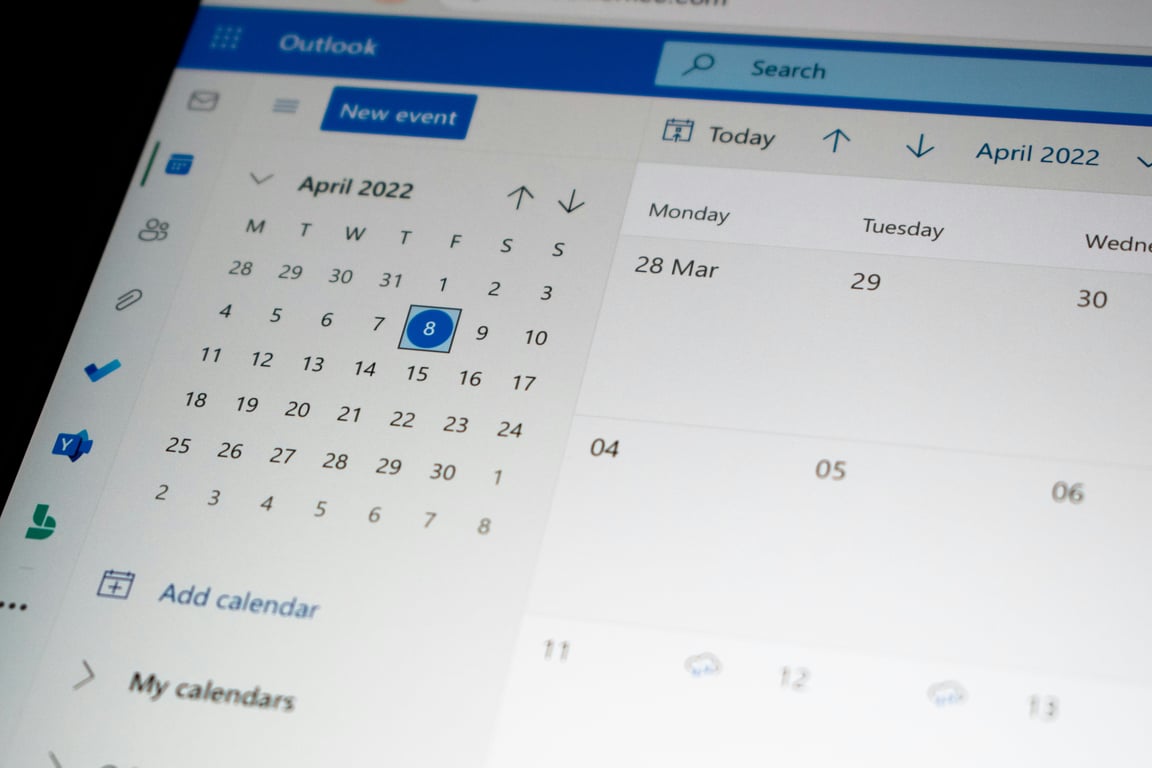
Photo by Ed Hardie on Unsplash — Notion calendar database view for team scheduling
What It Means to Add a Database to Notion Calendar
Notion databases support multiple views: table, board, gallery, timeline, and calendar. A calendar view visualizes any date property across a monthly or weekly grid. You can also connect a Notion database to Notion Calendar — the standalone calendar app — so entries appear alongside your Google Calendar events.
Both approaches serve different needs:
Calendar view inside a database — best for shared team visibility directly inside your Notion workspace
Connecting to Notion Calendar (the app) — best for individuals who want database entries to appear in their personal calendar alongside meetings and events
Building a Team Availability Calendar in Notion
A team availability calendar answers a simple question: who is working where today — office, home, or remote? Here is the database structure that makes this work cleanly.
Database 1: Default Weekly Schedule
This database stores each team member's standard working pattern. One row per person.
Key properties:
Name — the team member's name (title property)
Monday through Friday — a select property for each day with options: Office, Home, Remote, Not working
This is the source of truth for a person's default pattern. It does not change often. When a new team member joins, they add one row here.
Database 2: Team Availability Calendar
This is the database you will display as a calendar. One row per person per working day.
Key properties:
Name — a descriptive title (e.g., "Hannes — Office — Mon Feb 24")
Date — the specific working day (required for calendar view)
Person — a relation to your team database or a person property
Location — a select field: Office, Home, Remote
Adding the Calendar View
Inside Database 2:
Click Add a view at the top of the database
Select Calendar
Choose the Date property as the calendar date source
Switch between monthly and weekly view using the toggle in the top right
Each availability entry will now appear on the correct date in the calendar grid.
Connecting the Database to Notion Calendar (the App)
To surface these entries in Notion Calendar alongside your meetings:
In the left sidebar, find your work calendar and click ···
Select Add a Notion database
Search for and select your Team Availability database
Choose the Date property as the display date
Team members can then see availability entries alongside their existing Google Calendar events, without switching between tools.
Automating the Data Entry with the Notion API
The hardest part of this setup is not building the calendar view — it is populating it. Creating 260 entries per employee by hand (one per working day for the full year) is not realistic for any team beyond a handful of people.
Native Notion automations cannot solve this. They can trigger a single action when a new page is created, but they cannot loop through a template and generate hundreds of records automatically.
The cleanest solution is a script using the Notion API:
Read each person's Default Weekly Schedule record
Loop through every working day in the target year
Map the day of the week to that person's default location for that day
Create one page in the Team Availability database per working day
This script runs once to backfill the year, and again whenever a new team member is onboarded.
For teams that prefer no code, Make and Zapier both offer Notion modules that can handle bulk page creation. Make's iterator module is particularly well-suited to looping through a list and creating one record per item.
Tips for Keeping This Manageable
Keep default schedules simple — a standard Monday-to-Friday pattern covers most employees and reduces the number of exceptions to track
Minimize manual daily updates — the whole point of the default schedule is to reduce how often individuals need to update their location manually
Use Slack as a bridge — set up a Notion automation that sends a Slack message when a new default schedule is created, so someone can trigger the backfill script for that new team member
Plan for scale — a 20-person team generates around 5,200 availability entries per year. Notion handles this volume fine, but calendar views may feel dense at full team scale
Next Steps
Build your two databases, add the calendar view, and connect it to Notion Calendar. Then decide whether to handle data entry with a Python script using the Notion API, or with a no-code tool like Make or Zapier, based on your team's comfort level and existing tool stack.
📅
Want help designing and automating your Notion team calendar?Book a free discovery call and we'll build the right setup for your team's size and workflow.
Learn how small teams use Notion for workflow automation—building a custom CRM, task tracker, and knowledge base in one workspace without extra software.
Hit the Airtable 50,000 record limit? Learn short-term fixes, archiving strategies, and how to migrate your data and automations to Notion permanently.
Master Notion database relations to build connected recruiting workflows. Learn two-way relations, rollups, and automation with real recruiting examples.