How to Automate Client Follow-Up Emails From Feedback
Learn how to turn client feedback into automated follow up emails with task lists, waiting-on-client triggers, and human review that keeps reminders useful.
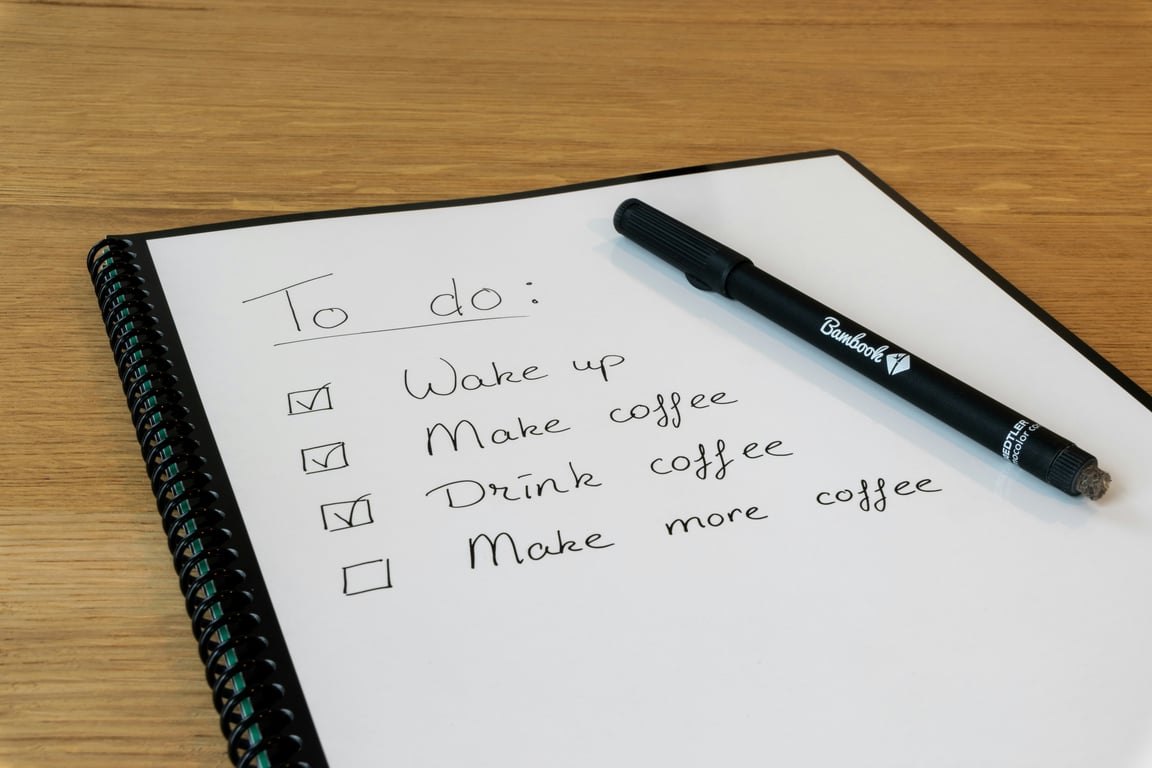
Automated follow up emails work best when they turn feedback into one clear next step, not when they resend an entire project update. Extract the tasks the client owns, send those tasks as a short checklist, and start a reminder only when the work is genuinely waiting on the client. Keep a human review step before delivery so the workflow can catch ambiguous instructions, completed work, and changes in context.
Consulting feedback often mixes several kinds of information:
What the consultant completed
What the client needs to provide or decide
Open questions
Recommendations for later
Internal notes that the client does not need to see
When all of that lands in one long email, the client's action items are easy to miss. A follow-up workflow should separate the explanation from the work request. The client needs a short list of specific tasks, with enough context to understand what each task means and whether the tasks can be completed independently.
This is also why email should not be the only place where the process lives. A client communication workflow can keep the status, owner, and next step visible while email handles the notification.
Build the workflow around client-owned tasks
Start with a structured feedback record or form. The exact fields will vary, but the workflow should be able to distinguish between completed work and tasks that are waiting on the client.
1. Capture the feedback
When feedback is submitted, store the full feedback for internal reference. Do not immediately send the entire submission to the client. First, identify the section that answers: “What does the client need to do next?”
If the source is unstructured, use an extraction step to produce a predictable task list. Each task should include:
A short action written as a verb
Any relevant link, file, or decision
An optional due date or suggested timing
The person responsible
A status such as open, complete, or not applicable
For example, “Review the setup” is vague. “Confirm the tracking domain and reply with the preferred sender address” gives the client a clear next action.
2. Generate a separate checklist email
Create a client-facing message from the extracted tasks, not from the full feedback record. Keep the format simple:
Subject: Next steps from your session
Body:
Thanks for the session. Here are the items needed to keep the work moving:
Confirm the sender address
Share access to the analytics property
Choose the preferred launch date
You can complete these one at a time. Reply when an item is done, or let us know if you need help with any step.
The checklist should tell the client what to do without exposing internal commentary. It should also avoid implying that every item is urgent. Clear wording reduces the chance that a client ignores the message because it looks like another wall of text.
3. Ask for a review before sending
The workflow should create a draft or approval task for a consultant before the email is sent. Human review is especially important when the extracted tasks include sensitive information, unclear ownership, or instructions that depend on a recent conversation.
A reviewer should confirm:
Every task is actually owned by the client
Completed project work is not included as an open task
The email does not expose internal notes
Links and attachments are correct
The tone matches the relationship
The reminder threshold is appropriate
Once approved, the message can be sent and the task list can be stored with the project record.
Add waiting-on-client logic before reminders
A timer alone is not enough. A reminder should require both a waiting state and an elapsed threshold.
A useful rule is:
If client status is “waiting on client,” and no matching response has been recorded after the configured number of days, create a follow-up activity.
The threshold should be configurable at the feedback or project level. Six days may be appropriate for one type of request, while a time-sensitive launch may need two days. A completed project should never enter the reminder path simply because an old feedback record still exists.
Use fields such as:
Waiting on client: yes or no
Waiting since: date and time
Reminder threshold: number of days
Last client response: date and time
Follow-up status: not due, due, sent, paused, or resolved
Project status: active, complete, or archived
Before creating a reminder, check whether the client has replied, booked the next session, or completed the task through another channel. If any of those events occurred, mark the item resolved instead of sending another email.
Create a follow-up activity, not just a timer
A reminder is more useful when it becomes a visible activity with an owner and a reason. The activity should show the original checklist, the waiting date, the threshold used, and the next recommended action.
For example:
Feedback is approved and the checklist email is sent.
The project is marked “waiting on client.”
The workflow stores the waiting date and a six-day threshold.
A daily check looks for a response or completed task.
On day six, the system creates a follow-up activity for the consultant.
The consultant reviews the context and sends, edits, pauses, or resolves it.
If the process touches a CRM or sales pipeline, a sales workflow can provide a central place for ownership, activity history, and next steps. The important part is not the platform. It is the combination of a clear state, a defined owner, and a stop condition.
Prevent noisy or duplicate reminders
Good reminder automation needs explicit safeguards. Add these checks before sending:
Do not remind if the project is complete or archived.
Do not remind if the client has responded since the last message.
Do not create a second open activity for the same feedback record.
Do not send during a pause or vacation window unless the workflow allows it.
Do not continue a sequence after the consultant marks the task resolved.
Do not retry indefinitely when an email fails; route the error for review.
A dashboard can list open client activities, days waiting, assigned consultant, and the next action. That view makes it easier to spot stalled work without asking the team to search through email threads.
A practical checklist for automated follow up emails
Before turning on automated follow up emails, confirm that the workflow can answer these questions:
What event creates the client task list?
Where is the approved checklist stored?
Who reviews the message before it is sent?
What exactly means “waiting on client”?
Where is the threshold configured?
What event cancels the reminder?
How does the workflow prevent duplicate activities?
Who owns the follow-up when the threshold is reached?
What happens when extraction or delivery fails?
Start with one feedback format and one reminder path. Test it with completed, active, waiting, and already-resolved examples before expanding it to every project.
The goal is not to send more email. It is to make the next client action obvious, track whether the work is actually blocked, and give the consultant a useful prompt at the right time.
Get help building your follow-up workflow
Most follow-up automations break at the stop condition: the reminder keeps firing after the client already replied, or a finished project slips back into the queue. If you want help designing the feedback, approval, and waiting-on-client logic for your team, book a ZoomFlow session. One of our consultants will build it with you live, and you will own the workflow when we are done.
Learn how to use Claude to design a practical scheduling assistant for a service business: data model, daily updates, dispatch workflow, and rollout steps.
Unify tasks in Notion from Basecamp, Gmail, and Slack with one Tasks database, linked views, and automated intake. See the schema, views, and Zaps to use.
Plan a Confluence to Notion migration without breaking permissions or governance. Use this enterprise checklist for discovery, pilots, rollout, and cleanup.