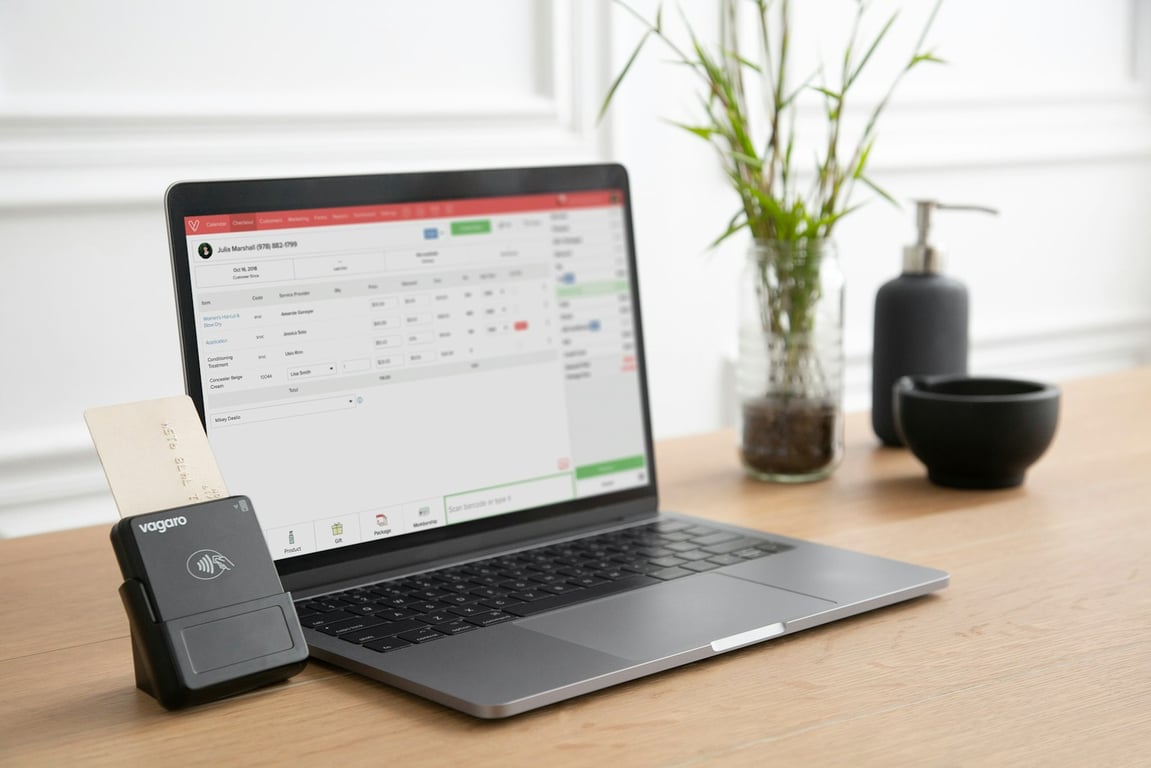
The most practical JobTread Wave integration for teams entering the same invoice twice is to automatically create a draft Wave invoice whenever a JobTread invoice is created. Draft-first keeps your accounting safe—nothing sends until you approve it—while eliminating the manual double-entry.
Photo by Kelly Sikkema on Unsplash
What this automation does (and what it doesn’t)
It does
Create a new invoice in Wave when an invoice is created/updated in JobTread.
Default that Wave invoice to Draft status so you or your accountant can review it before sending.
Map over key fields like:
Customer/client
Invoice number (or external reference)
Invoice date and due date
Line items (as supported)
Notes/memo (for things like partial billing context)
It doesn’t (usually)
Automatically reconcile expenses/receipts between JobTread and Wave. In many setups, Wave’s expense side is limited via no-code connectors, so treat expense reconciliation as a separate workflow (or a custom/API workflow).
Before you build: decide your “source of truth”
To keep your system stable, pick one place where invoices are created.
Recommended: Create invoices in JobTread, then push them into Wave.
Avoid “two-way invoice sync” unless you have strong deduping safeguards, because it can cause loops (each system triggers the other).
Most teams do this with a no-code automation platform like Zapier or Make.
If JobTread is available as a connector (trigger) and Wave is available as an action, start there.
If you can’t get the fields you need (or the trigger isn’t reliable), use webhooks or a custom API step.
Step 2: Trigger on a JobTread invoice event
Common trigger options:
“Invoice created”
“Invoice updated”
“Document updated” (in tools that treat invoices as documents)
If JobTread invoices are treated as a document object in your connector, use the most specific invoice-related trigger available.
Step 3: Look up (or create) the Wave customer
Customer matching is where most accounting automations break.
First, try to match by email (most reliable).
If email isn’t available, match by a normalized name (case-insensitive, trimmed, punctuation removed).
If not found:
Create a new customer in Wave, or
Route to a manual review step (recommended if you have strict accounting controls).
Step 4: Create the Wave invoice in Draft status
Create the Wave invoice with draft status (or “save as draft” behavior depending on the connector).
Include these mapping guidelines:
Invoice date / due date: map directly from JobTread when available.
Line items: map line items; if line items aren’t supported, write a single line item like “JobTread invoice #12345” and include detail in the memo/notes.
Partial billing context: if JobTread has “$5,000 of $20,000 proposal” context, put that in the invoice memo so it stays attached to the accounting record.
Step 5: Add a “mark as sent” exception flow (optional)
Some teams want Wave to record an invoice as sent even if they email the PDF from JobTread.
If that’s your process:
Keep Wave invoice creation as draft-first.
Add a conditional branch:
If customer is in your “Wave-send” segment → keep as draft until you send from Wave.
If customer is in your “JobTread-send” segment → create the Wave invoice and optionally set status to “sent/marked as sent” (only if your connector supports this safely).
Common edge cases (and how to handle them)
Duplicate invoices
Add an idempotency check:
Store the JobTread invoice ID in a custom field or memo in Wave.
Before creating a new Wave invoice, search Wave for that JobTread invoice ID.
Draft approval workflow
If your accountant needs to review drafts:
Send a Slack/email notification when a new draft is created.
Include a direct link to the Wave invoice.
Changes after the invoice is created
Decide whether you:
Allow updates to the Wave invoice if the JobTread invoice changes, or
Freeze Wave invoices after creation and require a manual adjustment.
For accounting teams, “create once, then adjust manually” is often safer.
Limitations: expense matching and receipts
It’s tempting to want this:
Upload a receipt in JobTread
Automatically match that receipt to a credit card expense in Wave
In practice, this often requires API-level work (not standard connector steps). Treat it as a separate project:
Confirm what Wave exposes through your automation platform for expenses
If the connector can’t do it, consider a custom/API workflow
Key takeaway
A draft-first invoice sync is the safest way to stop double-entry between JobTread and Wave: it automates the busywork while keeping your accounting review process intact.
Get help building this
Building a JobTread–Wave invoice sync usually breaks at customer matching—when JobTread’s customer name doesn’t map cleanly to the Wave customer record. If you’ve hit that wall, book a ZoomFlow session—one of our consultants can debug it with you live and ship the working version in the same call.
Learn how to automate a QuickBooks ShipStation invoice integration, trigger orders at the right stage, map SKUs and addresses, and test fulfillment safely.
Build a reliable Netlify form to QuickBooks invoice Zapier workflow. Trigger from Netlify form submissions (not email parsing) to prevent duplicate invoices.
Notion invoice tracking without duplicate data entry: keep Salesforce and QuickBooks as the source of truth and run collections from a synced Notion view.