Notion database for teen group therapy attendance + notes
Build a Notion system to track teen group therapy attendance and session notes with relational databases, rollups, and simple Make automations for parent emails.
If you’re running teen group sessions and trying to track attendance, facilitator notes, and parent communication in one place, a single Notion database will break down fast.
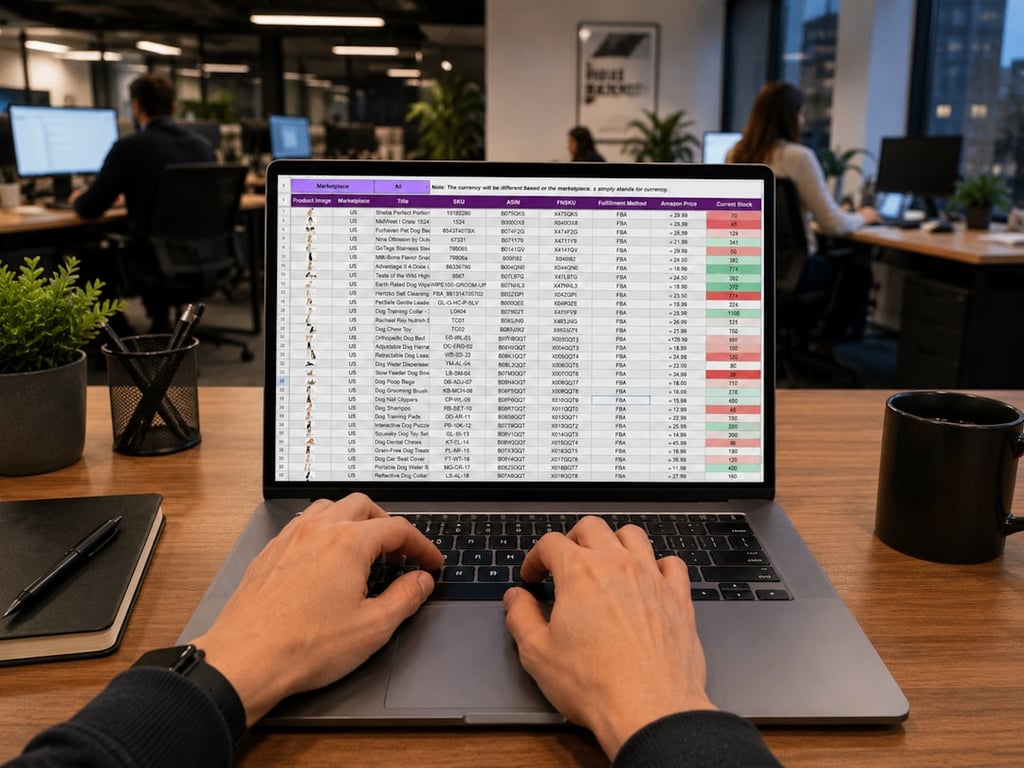
Photo by Gorilla ROI Data Connector on Unsplash
The clean approach is a relational setup: Parents → Students → Group Sessions → Group Notes, with rollups that surface the right details where you need them.
This guide walks through a proven schema, the key properties to add, and a simple automation pattern to send parent emails and log when you last sent them.
What you’ll build (the 4-database blueprint)
You’ll end up with four connected databases:
Parents (contact record)
Students (linked to a parent)
Group Sessions (each cohort meeting)
Group Notes (facilitator notes for a session)
This structure works for therapy groups, but it also maps well to coaching cohorts, tutoring programs, and camps where you need session-by-session history.
Database 1: Parents (contact info + communication history)
Create a database called Parents. Each parent is one row (one Notion page).
Recommended properties:
Name (title)
Email (email)
Phone (phone)
Students (relation to Students)
Last Automated Email Sent (date)
Trigger Email (checkbox) or Email Type (select)
Why store communication here?
It avoids duplicating contact info on every student.
It gives you one place to see when you last emailed a household.
Database 2: Students (profiles, attendance, and rollups)
This design makes it easy to open a student and immediately see:
how to contact the parent
which sessions the student attended
what notes exist across sessions
Database 3: Group Sessions (the meeting record)
Create a database called Group Sessions. Each row is a session (date, location, cohort, etc.).
Recommended properties:
Session Name (title) (example: “Spring Cohort – Session 3”)
Date (date)
Location (text or select)
Attendees (relation to Students)
Attendee Count (rollup → Attendees → count)
Group Notes (relation to Group Notes)
Database 4: Group Notes (facilitator notes per session)
Create a database called Group Notes. Each row is one facilitator note submission.
Recommended properties:
Note Title (title) (example: “Session 3 – Facilitator notes”)
Session (relation to Group Sessions)
Facilitator (person) (optional)
Notes (long text, or use the page body)
Optional but powerful:
Add a Students Mentioned relation to Students.
Then you can roll up notes back onto the student pages.
How to view notes in the right places
With relations + rollups, you can make Notion feel like a lightweight EMR-style timeline without forcing it.
Common views:
In Students: a view grouped by session date, showing notes that mention that student.
In Group Sessions: a view showing all Group Notes for that session.
In Parents: rollups showing student attendance counts (or a simple “Students” related list).
A simple automation pattern for parent emails (Make + Notion)
When you want a facilitator or admin to send a “welcome” or “reminder” email without opening an inbox, use a button-like trigger inside Notion.
Option A: One checkbox trigger (simple)
Add a checkbox property in Parents called Trigger Email.
In Make, watch for changes to your Parents database.
Filter: only continue when Trigger Email is checked.
Send the email in Gmail or Outlook using mapped fields (parent name, email, student name).
Update Last Automated Email Sent.
Uncheck Trigger Email.
This keeps the system safe from double-sends because the checkbox gets cleared.
Option B: A dropdown + router (scales to multiple email types)
If you need multiple email types (welcome, reminder, post-session follow-up), don’t create five checkboxes.
Instead:
Add a select property called Email Type (Welcome, Reminder, Follow-up, etc.)
In Make, add a Router and branch based on Email Type
After sending, clear Email Type and update Last Automated Email Sent
Fillout vs Tally for updating existing records (avoiding duplicates)
If your form tool creates duplicates every time someone submits, the Notion database will become unusable.
Here’s the practical difference:
Tally is great for simple intake forms, but many setups are optimized for creating new rows.
Fillout has a strong pattern for updating existing Notion pages using a unique page identifier. That means you can share a pre-filled update link and reliably write changes back into the right record instead of creating a new one.
A useful workflow:
Create the parent/student record first.
Store a “Update Form Link” property that generates a unique Fillout update URL.
Send that link to the parent so they can update details without duplicating records.
Templates and fast-start tips
Start with the four databases above, then add properties only when you feel friction.
Use a single cohort first. Don’t try to model every future program on day one.
Use a consistent naming convention for sessions and notes so filtering stays simple.
Get help building your group therapy system
If you want help building this system end-to-end (including forms + Make automations), we can design it with you and ship a working setup.
Build an automated crawler that finds broken links and missing images, logs each issue to Notion, and routes fixes to an owner, so you skip the manual audits.