Notion Google Calendar integration: sync tasks, deadlines, and events
Notion Google Calendar integration explained: connect Notion Calendar, show database deadlines, and automate Google Calendar events from Notion tasks with Make or Zapier.
If you want Notion deadlines to show up next to your meetings, the simplest Notion Google Calendar integration is to connect Google Calendar inside Notion Calendar, then add a Notion task database view to Notion Calendar so due dates appear alongside your schedule. For true “Notion → Google Calendar” task syncing, you will need an automation layer (like Make, Zapier, or a dedicated sync tool) because Notion Calendar does not natively push database items into Google Calendar.
What “Notion + Google Calendar integration” can mean (3 different things)
1) View Google Calendar events inside Notion Calendar
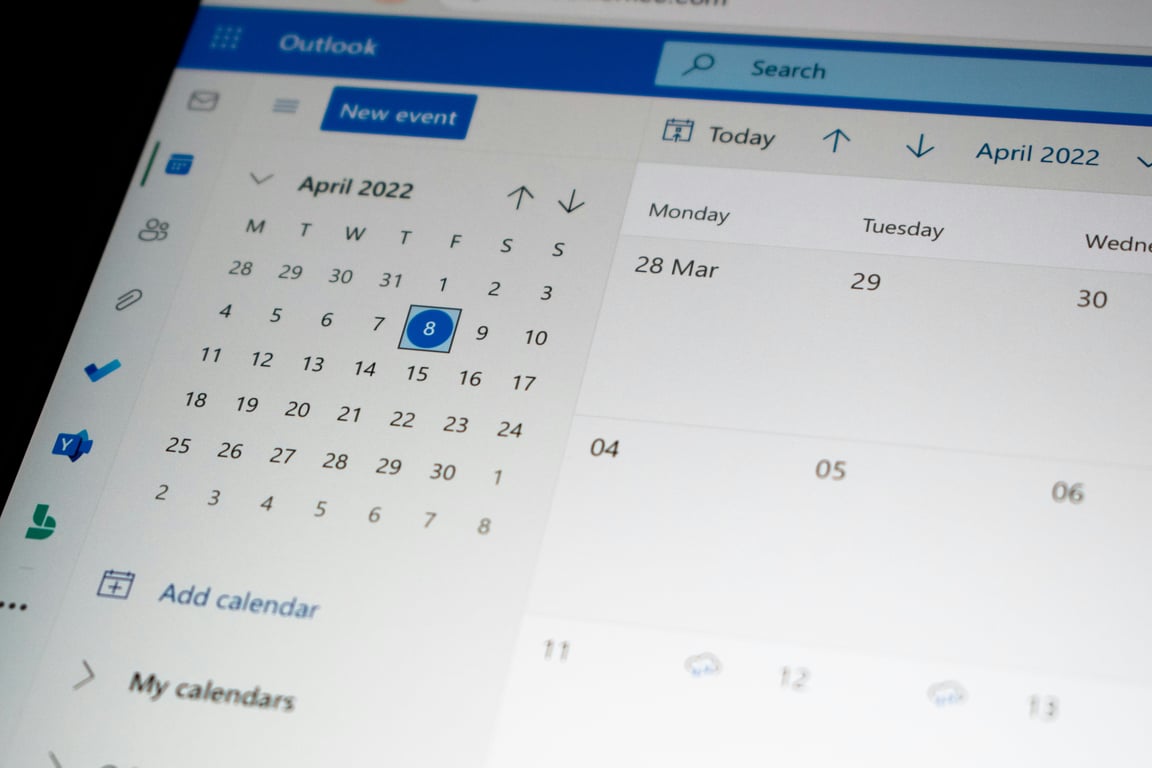
You can connect your Google account to Notion Calendar and view your calendars in one place.
2) Show Notion task deadlines inside Notion Calendar
If your tasks live in a Notion database with a Date (or Due Date) property, you can add a database view to Notion Calendar so those deadlines appear on your calendar.
3) Sync Notion tasks into Google Calendar (actual calendar events)
If you need task due dates or time blocks to become Google Calendar events, you typically need an automation to create and update those events based on changes in Notion.
How to connect Google Calendar to Notion Calendar (read-only calendar sync)
Install/open Notion Calendar.
Add your Google account.
Select which calendars to show.
Set colors so meetings and task deadlines are visually distinct.
How to add a Notion database to Notion Calendar (deadlines show up)
Step 1: Standardize your task database
Use one Date property for the deadline.
If you need times, store the date as a datetime.
Step 2: Create a view just for calendar-worthy items
Filter to:
tasks with a deadline set
tasks not completed
tasks owned by you (optional)
Step 3: Add the database view in Notion Calendar
In Notion Calendar, choose Notion Database.
Select your database and the correct date property.
Confirm the filter and color.
Common issues (and how to avoid them)
Duplicates
If you use automations to create Google Calendar events, store the Google Event ID in Notion so updates can be matched.
Time zones
Decide one standard time zone for the workspace and keep it consistent across Notion Calendar and Google Calendar.
Updates not reflecting
If you use a third-party sync, verify:
the “update event” step runs on edits
you have a stable unique key (page ID + event ID)
Recommended automation patterns (when you need Google Calendar events)
Create event when a task gets a deadline.
Update event when the deadline changes.
Delete or mark event done when the task is completed.
When you should not sync tasks to Google Calendar
If your calendar is already crowded, you may get more value by only syncing:
high-impact deadlines
tasks longer than 60 minutes
client deliverables
Why this matters for startups
A simple “source of truth” system prevents missed deadlines, reduces context switching, and helps founders keep execution predictable.
Connex can help you build a reliable Notion operating system
If you want a clean Notion task tracker that works with Notion Calendar, plus automations for syncing select deadlines into Google Calendar, we can help. Book a discovery call
Notion Agents vs Zapier Agents: a practical guide to strengths, tradeoffs, and the best use cases for each. Learn when to use Notion, when to use Zapier, and how to combine both reliably.
Posts arriving broken in WordPress from Airtable via Zapier? The culprit is usually custom taxonomy formatting. Here's why it happens and three ways to fix it.