Notion + Sunsama: task database setup that actually schedules work
Notion + Sunsama task management setup lets you build a clean task database in Notion and drag-drop time blocks in Sunsama. See the exact structure that works.
Quick answer: how to use Notion + Sunsama together
If you want drag-and-drop scheduling onto your calendar, you'll typically need both tools: Notion for the structured task database and dashboards, and Sunsama to pull those tasks into a daily plan and time-block them on a calendar.
Notion = the source of truth (tasks, owners, status, due dates, “dimensions/areas”)
Sunsama = the daily planning layer (choose tasks for today, drag them onto the calendar, mark them done)
What to build in Notion (minimal viable setup)
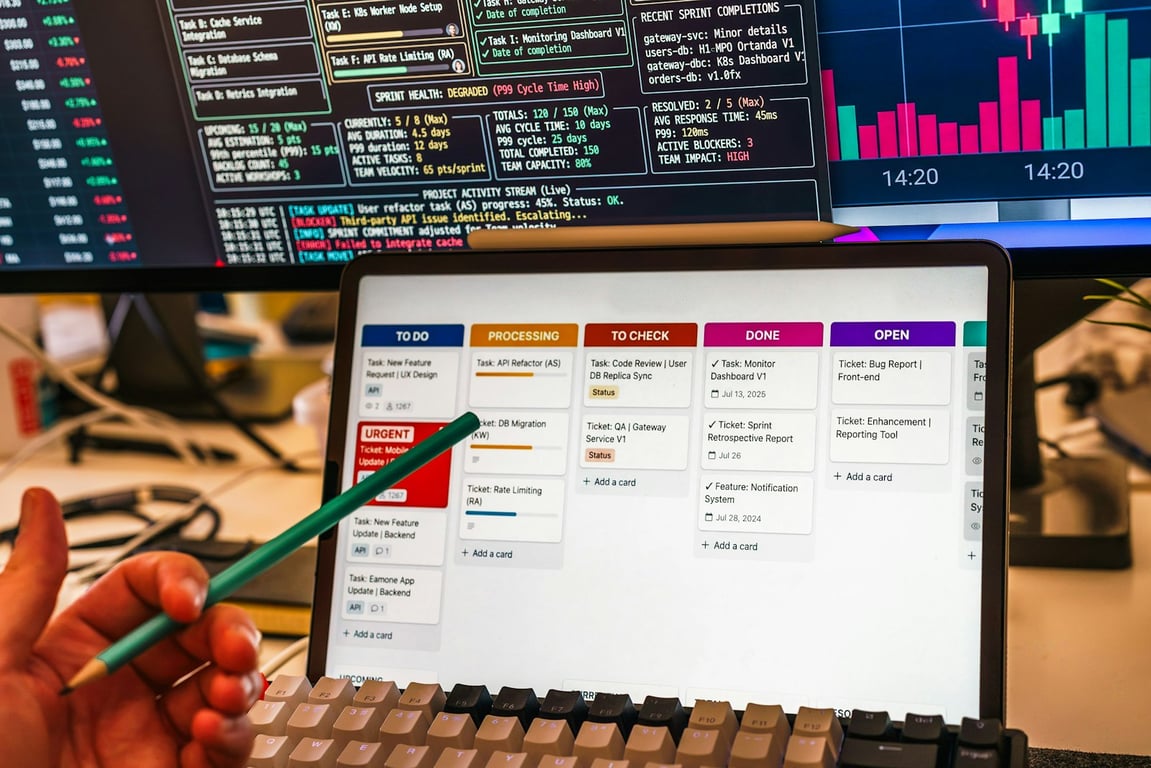
The goal is to have one task database that can serve multiple views (today, this week, by area of life, by status) without duplicating tasks.
1) Create one “Tasks” database
In your Tasks database, include these properties:
Status (Not started / In progress / Done)
Owner / Assignee (person)
Due date (date)
Area / Dimension (relation to a second database — see next step)
Optional but useful: Priority, Estimated time, Notes / context, Link to meeting/doc
Why this matters: daily planners like Sunsama usually need “task-like” pages (at minimum a date and status) to make importing/syncing work smoothly.
2) Create a “Dimensions (Areas of life)” database
Create a second database called Dimensions (or “Areas”) with one row per lane, e.g.:
Wins
Health
Family
Work
Finance
(Whatever else the system needs)
Then, in Tasks, add a Relation property to Dimensions.
3) Create the views people actually use
Instead of many separate databases, create views of the same Tasks database:
Today (filter: Due date is today OR “Scheduled for today”)
This week (filter: due date within next 7 days)
Backlog (filter: status is Not started, due date empty)
By dimension (board grouped by Dimension)
By status (board grouped by Status)
If the executive doesn’t want to “live in Notion,” keep their interface simple:
A single dashboard page with 2–4 linked views (Today, This Week, Backlog, By Dimension)
How Sunsama fits in (and why Notion alone usually isn’t enough)
Notion can store tasks and show them in filtered views, but if the workflow requires dragging tasks directly into specific time slots on a Google Calendar, Notion alone doesn't do that natively. Sunsama bridges the gap.
Typical workflow:
Create/manage tasks in Notion (often by the EA).
In Sunsama, browse the Notion task database.
Pull a handful of tasks into “Today.”
Drag tasks onto the calendar to time-block focused work sessions.
Mark complete in Sunsama, and let Sunsama sync that completion back to Notion.
Common integration gotchas (and how to avoid them)
Missing task fields
If a Notion database isn’t showing up in Sunsama, it’s often because the pages aren’t “task-like” enough. Add:
a Status property
an Assignee/Owner property
a Date property (due date or planned date)
Too many databases = duplicated work
If tasks exist in multiple places (weekly dashboard + separate “task list” database), you’ll end up duplicating updates. Use one Tasks database and build dashboards as linked views.
Confusing “due date” vs “scheduled date”
Many leaders want:
Due date = deadline (must be finished by)
Scheduled date/time = when they plan to work on it
Keep due dates in Notion, and rely on Sunsama’s calendar time-blocking to do the scheduling.
Recommended setup for an exec + EA workflow
EA builds and maintains the Notion Tasks database + Dimensions.
Exec uses Sunsama daily (plus Google Calendar) to choose what gets done and when.
Getting a Notion + Sunsama setup to work cleanly usually breaks at the database structure — too many separate task databases, mismatched properties, or a Sunsama sync that stops reflecting what's actually due. If you've hit that wall, book a ZoomFlow session — one of our consultants can walk through your setup live and ship a working version in the same call.
Learn how to use Claude to design a practical scheduling assistant for a service business: data model, daily updates, dispatch workflow, and rollout steps.
Plan a Confluence to Notion migration without breaking permissions or governance. Use this enterprise checklist for discovery, pilots, rollout, and cleanup.