How to add external users to Notion AI agents

Learn how to add external users to Notion AI agents, choose guest vs member access, and troubleshoot the most common permission issues.


Sep 9, 2026
How to add external users to Notion AI agents
Notion AI agents are only usable by people who can open both (1) the agent and (2) every page/database the agent needs — so when an external user “can’t open the agent,” it’s almost always a permissions mismatch, not an AI issue.
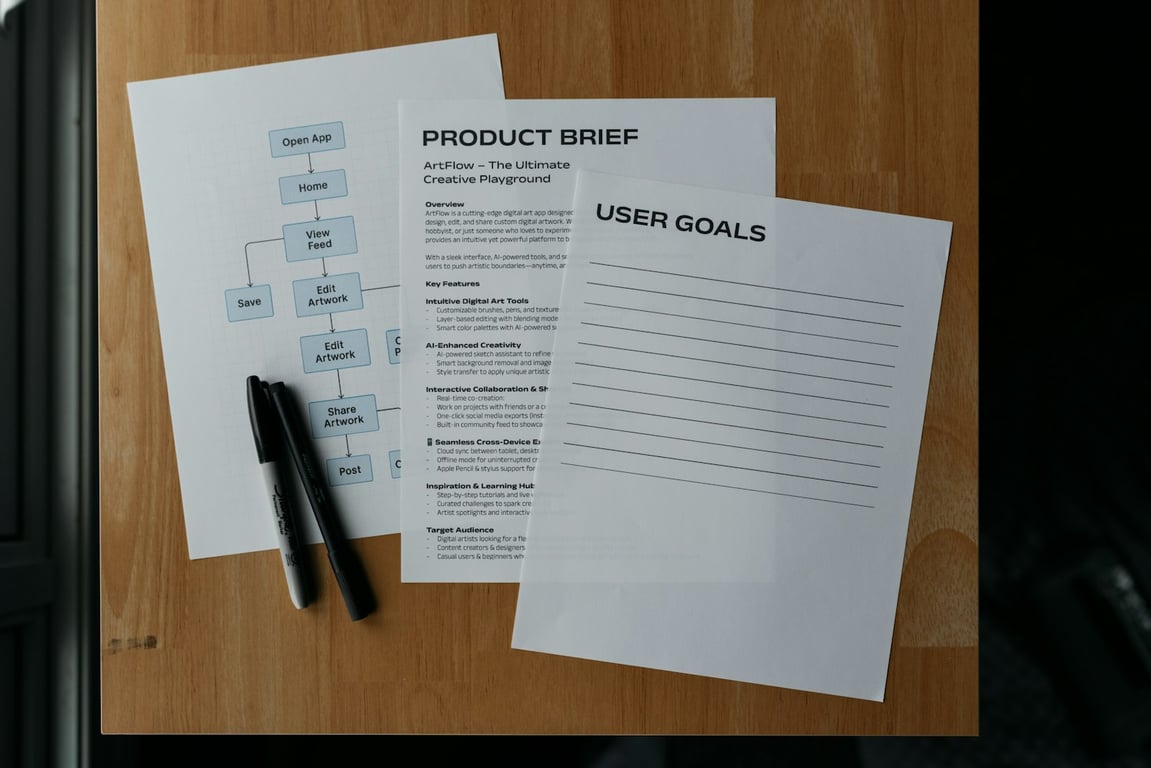
Photo by Annie Spratt on Unsplash

The permission model (member vs guest vs “viewer”)

Notion has two layers that have to line up:
  • Workspace access (member / guest / restricted member): This determines whether someone can even enter your workspace and see shared Teamspaces.
  • Page/database access (full access / can edit / can view): This determines what they can open once inside the workspace.
When teams say “add the external user as a viewer,” they usually mean: invite them to the workspace (or to the relevant Teamspace/page) with view permissions so they can open the agent and its source pages without being able to change content.

Step-by-step: add an external user so they can use an agent

  1. Confirm what “external” means
    • If the person is outside your company domain, they’re typically added as a guest (page-level access).
    • If your org prefers to avoid guests (or you hit guest limits), add them as a member with the most restrictive workspace role you can.
  2. Share the agent’s home page (or the page the agent lives on)
    • Share the page that contains the agent (or the agent’s landing page) with the external user.
    • Give them Can view first; escalate only if they truly need edit.
  3. Share every required source page/database the agent relies on
  4. If the agent reads from:
    • a project page
    • a database (and its linked views)
    • a wiki page
    • a referenced sub-page
…then the external user needs access to those too. One missing database permission is enough to break the flow.
  1. Check connection behavior (common pitfall)
  2. Some setups behave like the agent is trying to use the viewer’s connection context instead of a single shared connection. When that happens, an external user can open the agent UI but actions fail because they don’t have the required integration access.
    Fix by standardizing which connection(s) the agent uses and limiting it to the minimum set.

Troubleshooting checklist: “They can’t open the agent”

Work through these in order:
  • Are they a guest or a member?
    • Guests can only access explicitly shared pages (and sub-pages).
  • Can they open the page that contains the agent?
    • If not, share that page directly (not just a database view of it).
  • Can they open the agent’s required inputs?
    • Databases, wiki roots, and related pages must be shared explicitly.
  • Are Teamspace restrictions blocking guests?
    • Some Teamspaces disallow guests entirely.
  • Did you hit a guest limit or domain restriction?
    • If invites fail or silently change the role, this is often the reason.
  • Does it only fail for certain people?
    • That usually indicates role differences (restricted member vs member) or missing access to one dependency page.

A quick “minimum viable access” recipe

If you want the safest default:
  • Add the external user with Can view access to the agent page.
  • Share the minimum set of source pages/databases the agent needs with Can view.
  • Avoid giving broad Teamspace access unless necessary.

Common mistakes to avoid

  • Sharing only a linked database view (but not the underlying database/page).
  • Assuming “they can see the agent” means “they can see the agent’s inputs.”
  • Giving edit access to fix a view problem (it often masks the real missing permission).

Get help with Notion permissions

Notion's permission layers trip up almost every team the first time they share an agent with an outside user. If you're setting up Notion AI agents for your team and want the access model right the first time, book a ZoomFlow session — a Connex consultant can walk through your workspace setup with you and get the permissions model working in one call.