HubSpot Lead Classification Without a Lead Type Field
No lead type field in HubSpot? Learn how to use AI and form names to automatically classify leads, categorize contacts, and route them into the right workflows.
When your HubSpot account has dozens of forms but no standardized lead type field, most teams end up routing leads manually — or not routing them at all. The fix is simpler than it sounds: use the form name as a classification signal, pass it to an AI, and let the automation route each lead into the right workflow.
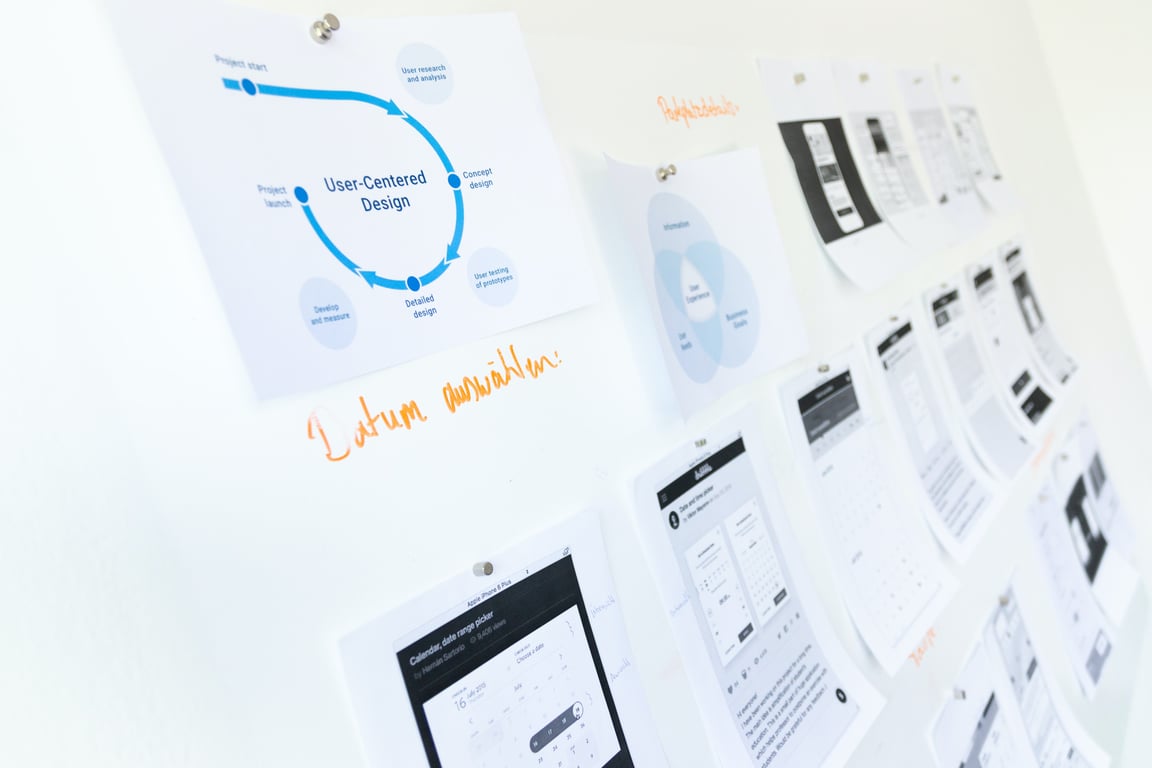
HubSpot lead classification workflow automation — Photo by NEW DATA SERVICES on Unsplash
The Problem: Unstructured Leads, Disconnected Prompts
HubSpot accounts accumulate forms over time — one per campaign, landing page, webinar, and product offering. The form name implicitly tells you a lot about a lead (is this from a training campaign? a product inquiry? a partnership request?), but that context rarely gets surfaced in the CRM in a way automation can act on.
Without a "lead type" or "lead source category" field that's populated consistently, conditional workflows break down. You end up with a flat list of leads and a library of follow-up prompts written for different audiences, with no reliable way to match them automatically.
A related version of this problem: the team has a large, unstructured prompt library — sometimes shared across email threads — where different prompts apply to different lead types, but no one has formally categorized which prompt goes with which scenario.
The Solution: AI Classification via Form Name
The approach, using Zapier (or Make), works in five steps:
Trigger on a new contact or lead created in HubSpot
Pull the form name from the HubSpot activity or contact properties
Pass the form name to an AI step (OpenAI, Claude, or Zapier's built-in AI) with a classifier prompt
The AI maps the form name to a lead category based on keyword patterns you define (e.g., forms containing "training" → Training Lead; forms containing "inquiry" → Sales Lead)
Write the category back to HubSpot as a contact property, then branch the workflow accordingly
The result: every new lead gets categorized automatically, and the right follow-up sequence fires without any manual tagging.
Handling a Messy Prompt Library
If your team's follow-up strategy lives in an unstructured collection of prompts — scattered across documents or email threads — start with a one-time AI clean-up pass before building the automation:
Feed the full prompt document to an AI and ask it to identify where the breaks are between individual prompts and infer what each one is for. This produces a categorized prompt map.
With the map in hand, your Zapier or Make automation can use the form name to select the right prompt category, then apply it to the incoming lead.
This turns a chaotic collection of copy into a decision tree that automation can traverse cleanly.
What to Prepare Before You Build
Before wiring up the automation, do a one-time exercise with your team:
List all active HubSpot forms
Group them by lead intent (Sales, Training, Support, Partnership, etc.)
Provide those groupings to the AI classifier as context in the system prompt
With that groundwork done, the automation classifies new leads accurately — even as new forms are added over time, as long as the naming patterns stay consistent.
Dealing With Non-Technical Stakeholders
A recurring challenge in projects like this is that the business owner understands their lead types intuitively but struggles to articulate the rules in a way that's actionable for automation. A few approaches that help:
Show, don't ask: Present a sample of 10–15 leads and ask the stakeholder to sort them into categories manually. That session usually surfaces the classification rules faster than any meeting.
Start with keywords: Even a rough list of 3–5 keywords per category is enough to build a working classifier. Refine it after the first real batch runs.
Use the activity field as a fallback: If the form name isn't available, HubSpot's activity log often contains form submission data that can serve the same purpose.
Automate Your HubSpot Lead Workflows
If you want help building a lead classification and routing system that connects HubSpot, AI, and your existing tools, our automation team can design and implement it in a single engagement.
Notion AI pricing explained: plan features, usage allowances, premium-model credits, Custom Agent limits, and the admin controls that keep AI spend predictable.
A restaurant-tech company built an AI SMS support agent that reads customer photos, answers from its Notion knowledge base, and hands unclear cases to humans.
Learn how to use Claude to design a practical scheduling assistant for a service business: data model, daily updates, dispatch workflow, and rollout steps.