OpenAI API Cost Optimization: Smart File Handling for Automation
Learn OpenAI API cost optimization for automation workflows with practical file-type restrictions, model selection tips, and credit controls to keep spend predictable.
OpenAI API costs can spiral quickly if you're processing files in automation workflows without proper guardrails. This guide focuses on OpenAI API cost optimization for automation—how file uploads, model choice, and request structure can be the diffauterence between pennies and dollars per operation. Here's how to keep OpenAI integration costs predictable and reasonable.
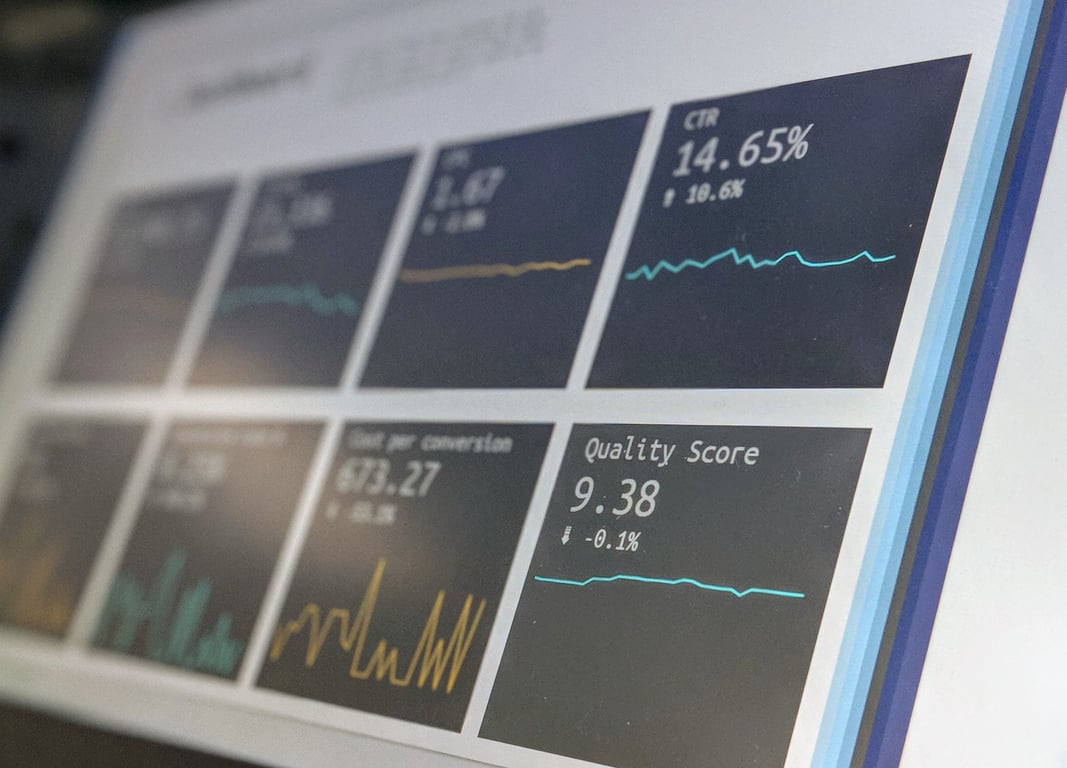
OpenAI API cost optimization dashboard — Photo by Stephen Dawson on Unsplash
Understanding OpenAI Pricing for File Analysis
OpenAI charges by the token for both input and output. When analyzing files—like resumes, documents, or images—the cost depends on:
File size and complexity - Larger files with more content use more tokens
Model selection - GPT-4 costs significantly more than GPT-4o mini
Processing method - Direct analysis vs uploading then analyzing
For automation workflows processing user-uploaded files, costs typically range from $0.01 to $0.10 per file when using efficient models and proper file handling.
The Critical First Step: File Format Restrictions
The single most effective cost control is restricting which file types you process.
Why File Format Matters
Different file formats require different processing approaches:
PDFs - Can be analyzed directly with reasonable token usage
Word documents (.docx) - Require extraction, increasing complexity
Images (photos of documents) - Use vision models, significantly higher cost
Large graphics-heavy files - Can exceed file size limits or use excessive tokens
Implementation Strategy
Before processing any file with OpenAI, validate the file type:
1. User uploads file
2. Check file extension (is it .pdf?)
3. If YES → proceed to OpenAI analysis
4. If NO → send re-upload instructions, stop workflow
This prevents costly processing of:
Image files (screenshots, photos of documents)
Unsupported formats that would fail anyway
Extremely large files that would consume excessive tokens
User communication: Make your file requirements clear on the upload form: "Please only upload PDF files. If your resume is in another format, convert it to PDF first."
Choosing the Right OpenAI Model
Model selection has the biggest impact on per-operation costs.
GPT-4o mini for Most Document Analysis
For resume screening, form extraction, and document categorization, GPT-4o mini provides excellent accuracy at a fraction of the cost:
Sufficient reasoning for most analysis tasks
60-80% cost reduction compared to GPT-4o
Comparable accuracy for structured data extraction
When to use GPT-4o mini:
Resume/CV screening and qualification checks
Form data extraction
Document classification
Compliance checking against criteria
Location/eligibility verification
When to Use Standard GPT-4
Reserve more expensive models for complex reasoning:
Analyzing a 2-page PDF resume with GPT-4o: ~$0.08-0.12
Same resume with GPT-4o mini: ~$0.01-0.03
Understanding OpenAI Billing: Credits vs ChatGPT Plus
Important distinction: ChatGPT Plus ($20/month) is different from OpenAI API credits.
ChatGPT Plus - Subscription for using ChatGPT interface directly
OpenAI API Credits - Pay-as-you-go for API calls from Zapier, Make, or custom apps
For automation workflows, you need API credits, not ChatGPT Plus.
Setting Up API Credit Management
Create dedicated OpenAI account for business automation (separate from personal)
Add initial credit amount - Start with $10-30 to monitor usage
Set up auto-recharge with monthly limits to prevent runaway costs
Enable low-balance alerts to get notified before running out
Example configuration:
Initial credit: $20
Auto-recharge when below: $5
Recharge amount: $20
Monthly spending limit: $100
This prevents your automation from stopping unexpectedly while protecting against unexpectedly high bills.
Zapier + OpenAI Integration Setup
When connecting OpenAI to Zapier (or Make, n8n, etc.):
Step 1: Generate API Key
Log into your OpenAI account (the one with API credits, not just ChatGPT)
Navigate to API keys section
Create new secret key
Save it immediately - you won't see it again
Name it clearly (e.g., "Zapier - Resume Screening")
Step 2: Connect to Zapier
In your Zap, add OpenAI action (search for "ChatGPT" in Zapier)
Choose "Add Connection"
Paste your API key
Select region (US, Global, or EU based on data requirements)
Test connection
Regional consideration: If you serve US-based users only, select "US" region for potentially better performance.
Preventing Costly Errors
Error 1: Processing Every File Regardless of Type
Problem: User uploads a photo (.jpg) of their resume instead of a PDF. Your automation tries to process it, fails, or uses excessive vision model credits.
Solution: Add file type check before the OpenAI step. Branch your workflow:
PDF → Continue to OpenAI
Other format → Send re-upload email, stop workflow
Cost impact: This single check can reduce wasted API calls by 20-30%.
Error 2: Not Handling Large Files
Some PDFs, especially those with embedded images or graphics, can be very large.
Solution: Check file size before processing:
Files under 5MB → Process normally
Files over 5MB → Request simplified version or use file upload method
Error 3: Re-processing on Every Trigger
If your automation triggers multiple times (due to webhook issues or retries), you might analyze the same file repeatedly.
Solution: Add a "processed" flag or status check:
Before OpenAI analysis, check if result already exists
If exists, skip OpenAI call
If new, proceed with analysis
Optimizing Your Prompts for Cost
Prompt efficiency directly impacts token usage:
Keep System Prompts Concise
Inefficient:
You are an expert resume screener with years of experience in talent acquisition and human resources. Please carefully review the following resume and provide a detailed analysis of the candidate's qualifications, including their work history, educational background, technical skills, soft skills, and overall fit for virtual assistant positions...
Efficient:
Analyze this resume for virtual assistant qualifications. Check for:
1. 1+ years VA experience
2. US location
3. Relevant software skills

Return: {"qualified": true/false, "location": "US/Non-US", "experience_years": number}
Token savings: 70-80% reduction in input tokens per analysis
Request Structured Output
Asking for JSON output reduces unnecessary explanation tokens:
Return JSON only, no explanation:
{"pass": boolean, "reason": "one sentence"}
This prevents the model from generating paragraphs of analysis you don't need.
Monitoring and Optimization
Track Your Per-Operation Costs
After setting up your workflow:
Process 10-20 test files
Check OpenAI usage dashboard for actual token consumption
Calculate average cost per file
Project monthly volume to estimate total spend
Example calculation:
Average cost per resume: $0.02
Expected monthly volume: 500 resumes
Projected monthly cost: $10
When Costs Are Higher Than Expected
Diagnose the issue:
Check which model is being used (should be GPT-4o mini for most cases)
Review prompt length (system + user prompt)
Verify you're not requesting unnecessarily long responses
Check for duplicate processing (same file analyzed multiple times)
Common fix: Switching from GPT-4o to GPT-4o mini typically cuts costs by 60-70% with minimal accuracy loss for structured analysis tasks.
Alternative Approaches for High-Volume Scenarios
If processing hundreds or thousands of files daily:
Batch API (50% Discount)
OpenAI offers a Batch API with 50% cost reduction for jobs that can complete within 24 hours:
Collect files throughout the day
Submit batch job in evening
Retrieve results next morning
Process results and send communications
Best for: Non-urgent document processing where 12-24 hour delay is acceptable
Pre-screening Before OpenAI
Add cheaper validation steps before expensive AI analysis:
Check file type (free)
Verify file size is reasonable (free)
Extract text and check for required keywords (cheap text processing)
Only send qualified files to OpenAI (expensive)
This "funnel approach" ensures you only use OpenAI credits on files likely to pass initial checks.
Tech Stack Consolidation
As your automation grows, consider consolidating services:
Potential savings: 30-40% reduction in monthly SaaS costs by eliminating redundant services.
Getting Started Checklist
Create dedicated OpenAI account for business automation
Add $20-30 initial API credits
Set up auto-recharge with monthly limit (e.g., $100)
Generate and save API key securely
Connect API key to Zapier/Make
Implement file type validation before OpenAI processing
Use GPT-4o mini for document analysis
Structure prompts for JSON output
Process 10-20 test files and calculate average cost
Set up monthly budget alerts
💡
Pricing figures verified May 2026. OpenAI API pricing changes frequently — check OpenAI's pricing page for current rates before committing to a workflow.
Conclusion
OpenAI API costs are highly controllable when you implement basic guardrails: restrict file types before processing, use efficient models like GPT-4o mini, structure prompts for concise output, and monitor usage with pay-as-you-go credits. Most document analysis workflows run at $0.01-0.03 per file with these optimizations—predictable and sustainable for automation at scale.
Need Help Cutting Your OpenAI API Costs?
Need help implementing cost-effective AI automation?Book a consulting session to review your workflow and optimize API usage.
Notion custom agents switch to paid credits May 4, 2026. Learn how to audit your usage, narrow triggers, and optimize agent workflows before the meter starts.