How to Automate Resume Screening with OpenAI and Zapier
Learn to automate resume screening with OpenAI and Zapier: validate PDFs, extract skills, score candidates, and trigger follow-up emails to save hours in hiring.
Screening resumes manually is time-consuming and error-prone. By combining OpenAI's AI analysis with Zapier automation, you can build a system that validates resume files, extracts key qualifications, and routes candidates automatically—saving hours per week while improving hiring quality.
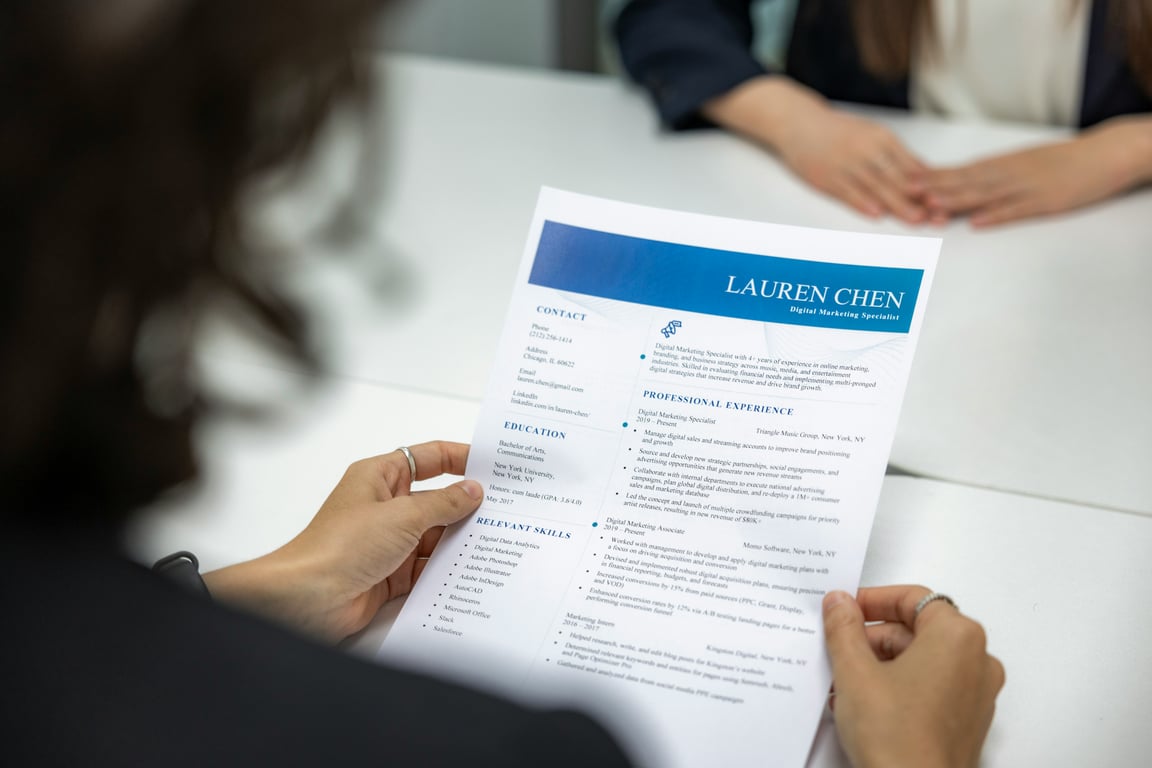
Photo by Resume Genius on Unsplash
Why automate resume screening?
Manual resume review creates several problems:
Time drain: Reviewing 50+ resumes can take days
Inconsistent evaluation: Different reviewers apply different standards
File format chaos: Applicants submit Word docs, PDFs, images, and other formats
Manual email tracking: Following up with candidates requires spreadsheets and notes
The PDF validation problem
Most resume screening systems fail at the first step: file format validation. When you accept resume uploads through forms like Typeform or Google Forms, applicants will submit:
PDFs (ideal)
Word documents (.docx)
Images (screenshots of resumes)
Other formats
Without validation, your AI analysis tool will fail on non-PDF files or waste API credits processing inappropriate formats.
Solution: Validate before processing
Step 1: Set clear upload instructions
On your form, explicitly state: "Please only upload PDF files."
Step 2: Build conditional logic in Zapier
When a resume is submitted:
Check the file extension
If PDF → proceed to OpenAI analysis
If non-PDF → send re-upload email with instructions
This protects your OpenAI costs and ensures consistent processing.
Setting up OpenAI for resume analysis
Why use OpenAI directly instead of Zapier's built-in AI?
Zapier's native AI action has limitations:
Strict file type requirements
Less control over prompts
Limited error handling
Using OpenAI's API directly through Zapier gives you:
Support for multiple file types (after validation)
Custom prompts for your specific screening criteria
Better handling of large files
OpenAI account setup
Create a separate OpenAI account for your hiring automation:
Keep business automations separate from personal use
Makes billing tracking cleaner
Easier to transfer if you sell the business
Choose ChatGPT Plus ($20/month *(pricing as of May 2026 — verify current rates)*) to start
Screening criteria prompt
Your OpenAI prompt should check for:
Required qualifications (e.g., "Must be US-based")
Key skills match
Experience level
Red flags (gaps, formatting issues)
Example prompt structure:
Analyze this resume for a virtual assistant position.
Required criteria:
- Must be based in the United States
- Minimum 2 years experience
- Proficient in [specific tools]

Provide:
1. PASS or FAIL
2. Reason for decision
3. Key strengths or concerns
Email automation: ConvertKit vs Zapier
Once you're processing resumes at scale, email automation becomes critical. You'll need to send:
Recurring emails in ConvertKit = much cheaper at scale
Preventing duplicate emails
When using ConvertKit for recurring emails, implement safeguards:
Tag subscribers when they receive one-off communications
Create filters to exclude recently contacted subscribers
Use ConvertKit's built-in duplicate prevention
Complete workflow architecture
Step 1: Form submission
Applicant submits resume via Typeform/Google Forms
Zapier catches the submission
Step 2: File validation
Check if file is PDF
If yes → continue
If no → send re-upload request via Zapier Email
Step 3: OpenAI analysis
Upload PDF to OpenAI
Run screening prompt
Store results in Airtable/database
Step 4: Smart routing
PASS result:
Add to ConvertKit for ongoing communication
Send next-steps email via Zapier
Create record in qualified candidates database
FAIL result:
Send rejection email via Zapier
Log reason for future analysis
Step 5: Ongoing engagement (ConvertKit)
90-day availability check automation
Newsletter updates
Re-engagement campaigns
Common pitfalls to avoid
1. Not separating OpenAI accounts
Keep business automation separate from personal ChatGPT use for cleaner billing and potential business sale.
2. Processing all file types
Validate PDFs first to control OpenAI costs. Non-PDF files should trigger re-upload requests.
3. Using only Zapier for all emails
Recurring emails become expensive fast. Split between Zapier (one-off) and ConvertKit (recurring).
4. No duplicate email prevention
Implement checks in ConvertKit to avoid bombarding candidates with multiple messages.
5. Ignoring large file handling
OpenAI's built-in action may fail on large PDFs with graphics. Use file upload then analysis for better reliability.
Real-world implementation timeline
Week 1: Foundation
Set up OpenAI account
Create Zapier connections
Build PDF validation logic
Week 2: AI screening
Write screening prompts
Test with sample resumes
Refine criteria
Week 3: Email automation
Set up ConvertKit account
Create email templates
Build Zapier → ConvertKit connection
Week 4: Testing & refinement
Run test candidates through full workflow
Monitor for errors
Adjust duplicate prevention rules
Measuring success
Track these metrics:
Time saved per candidate (typically 10-15 minutes)
False positive/negative rate from AI screening
Email delivery and open rates
Candidate feedback on process
Cost per candidate processed
Get help building this
Building a resume screening workflow like this usually breaks at the file handling step—when Zapier receives a non-PDF and you haven't set up the conditional logic to handle it cleanly. If you've hit that wall, book a ZoomFlow session—one of our consultants can debug it with you live and ship the working version in the same call.
Build an automated crawler that finds broken links and missing images, logs each issue to Notion, and routes fixes to an owner, so you skip the manual audits.