Task dependencies in Notion allow you to define which tasks must complete before others can start. Combined with timeline view, dependencies give you a visual project schedule that automatically adjusts when dates shift.
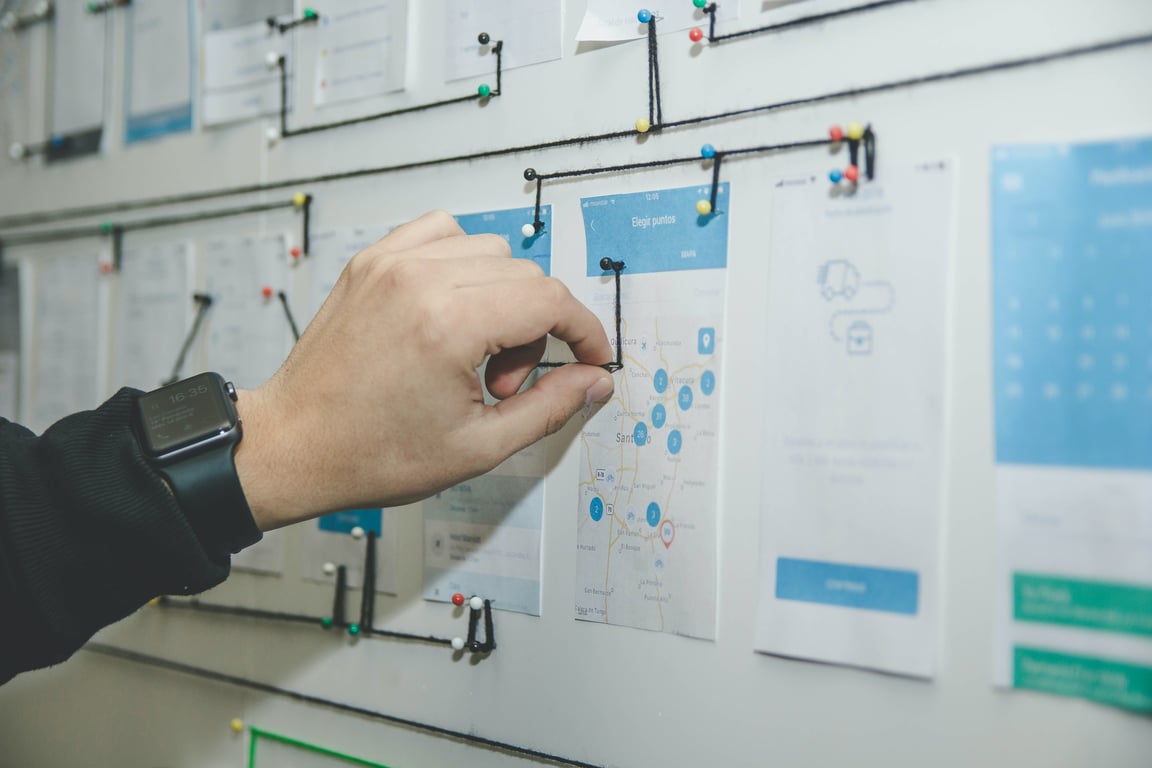
Photo by Alvaro Reyes on Unsplash
What Are Task Dependencies
Dependencies define blocking relationships between tasks:
Task A blocks Task B means Task B cannot start (or should not start) until Task A completes.
In project management terms, this is a "Finish-to-Start" (FS) dependency—the most common type.
Real-world examples:
"Get Resume" blocks "Schedule Interview"
"Requirements Document" blocks "Design Phase"
"Client Approval" blocks "Launch Campaign"
Enabling Dependencies in Notion
Dependencies are a database-level feature, not enabled by default.
Enable Dependencies
Open your database and click the settings menu (⋮⋮) at the top right.
Under Database settings, select More settings.
In the menu that appears, select Dependencies.
Choose your date shifting behavior (covered in the next section).
Toggle on Avoid weekends if needed, then click Turn on dependencies.
This adds two relation properties to every item in your database:
Blocked by (tasks that must complete before this one starts)
Blocking (tasks waiting on this one to finish)
Both properties update automatically when you set a dependency — set one and the other fills in
Note: Notion's database settings menu (⋮⋮) is at the top right of any database view. The Dependencies option only appears after you have at least one date property on the database.
This adds two new relation properties:
Blocked by (tasks that must complete first)
Blocking (tasks waiting on this one)
Date Shifting Behaviors
When you enable dependencies, Notion offers three options for automatic date adjustment:
1. Shift only when dates overlap
How it works: If Task A (blocking) is pushed to overlap with Task B (blocked), Task B shifts forward just enough to avoid the overlap.
Example:
Task A: Due March 10
Task B: Due March 12 (blocked by A)
You change A to March 13
Result: B automatically shifts to March 15
When to use: You want flexibility in scheduling but need to prevent impossible overlaps.
2. Shift & maintain time between items
How it works: Maintains a fixed buffer between tasks. If Task A shifts by 3 days, Task B also shifts by 3 days.
Example:
Task A: Due March 10
Task B: Due March 15 (blocked by A, 5-day buffer)
You change A to March 13
Result: B shifts to March 18 (maintaining the 5-day buffer)
When to use: You have specific buffer times built into your process (review periods, processing time, etc.).
3. Do not automatically shift
How it works: Dependencies are visual only. Dates never change automatically.
When to use: You want to see blocking relationships but prefer manual control over all dates.
Weekend Avoidance
All three modes offer an optional setting: "Prevent shifted items from starting or ending on weekends."
Enable this if your team doesn't work weekends and you want automatic adjustments to land on weekdays.
Setting Up Dependencies
Method 1: Using the "Blocked By" Property
Open a task page
Find the "Blocked by" property
Click to search for and select blocking tasks
You can select multiple blocking tasks
The reciprocal "Blocking" property updates automatically on the tasks you selected.
Method 2: In Timeline View (Visual)
Switch to Timeline view
Hover over any task bar
An arrow appears on the right edge
Click and drag the arrow to another task
Release to create the dependency
This creates a visual connection line between tasks.
Note: Dependencies created in Timeline view are the same as those created via properties—it's just a different interface.
Timeline View for Dependencies
Timeline view visualizes your tasks on a calendar with dependency connections.
Creating a Timeline View
In your database, click "+ Add a view"
Select "Timeline"
Name it (e.g., "Project Schedule")
Choose which date property to use (typically "Due date")
Timeline View Features
Dependency arrows:
Lines connect blocking tasks to blocked tasks, making the critical path visible.
Drag to reschedule:
Drag task bars left or right to change dates. If dependencies are enabled with automatic shifting, dependent tasks adjust accordingly.
Zoom levels:
Change between day, week, month, and quarter views using the controls at the top.
Grouping:
Group by Status, Assignee, or any select/multi-select property to organize your timeline.
Color coding:
Tasks display in different colors based on their status or assignee (depending on your grouping).
Real-World Setup: Recruiting Process
Here's how dependencies work in a recruiting workflow:
Task Structure
Get Resume (no dependencies)
Due: Today
Status: To Do
Initial Call (blocked by: Get Resume)
Due: 3 days from now
Status: To Do
Present to Client (blocked by: Initial Call)
Due: 7 days from now
Status: To Do
What Happens When Dates Change
Scenario: The candidate doesn't send their resume until 4 days late.
You do: Change "Get Resume" due date from March 1 → March 5
Notion does (with "maintain time between" enabled):
"Initial Call" shifts from March 4 → March 8
"Present to Client" shifts from March 8 → March 12
Your entire pipeline adjusts automatically, maintaining proper sequencing.
Advanced Dependency Patterns
Multiple Blocking Tasks
A task can be blocked by multiple tasks. It should only start when ALL blockers complete.
Example:
"Launch Campaign" is blocked by:
"Content Approved"
"Design Finalized"
"Legal Review Complete"
All three must finish before launch can proceed.
Dependency Chains
Tasks can create long chains:
A → B → C → D → E
Changing A's date ripples through the entire chain.
Use case: Manufacturing process, content production pipeline, software release cycle
Parallel Tracks
Some tasks can happen simultaneously:
  A → B → C
 /          \
Start        → End
 \          /
  D → E → F
Tracks A-B-C and D-E-F run in parallel, both must complete before End.
Common Dependency Mistakes
Circular Dependencies
❌ Don't do this:
Task A blocked by Task B
Task B blocked by Task A
This creates an impossible loop. Notion doesn't prevent this, so be careful.
Over-Dependencies
❌ Don't do this:
Making every task dependent on the previous one when some could happen in parallel.
✅ Do this instead:
Only create dependencies for true blocking relationships. Allow parallel work when possible.
Forgetting Buffer Time
❌ Don't do this:
Task A due: March 10
Task B due: March 10 (blocked by A)
Task B can't start the same day A finishes if there's review time, processing, or handoff needed.
✅ Do this instead:
Build in realistic buffer time between dependent tasks.
Dependencies vs. Relations vs. Sub-items
These three features are often confused:
Dependencies (Blocked by/Blocking):
Define temporal ordering
"This must happen before that"
Affect timeline scheduling
Relations:
Link related items across databases
"This task relates to that project"
No inherent ordering or blocking
Sub-items:
Create hierarchical task breakdowns
"This big task contains these smaller tasks"
Parent-child relationship
You can use all three together:
A task has sub-items (breakdown)
Each sub-item has dependencies (ordering)
All tasks relate to a project (context)
Limitations of Notion Dependencies
Not true project management:
Notion's dependencies are primarily visual and date-shifting aids. They don't prevent you from:
Marking a blocked task as complete before its blocker
Working on tasks out of order
Manually changing dates to invalid sequences
No other dependency types:
Notion only supports "Finish-to-Start." You cannot define:
Start-to-Start (both start together)
Finish-to-Finish (both finish together)
Start-to-Finish (rare type)
No resource leveling:
Notion doesn't consider assignee workload or capacity when scheduling.
When to use dedicated project management software:
For complex projects with hundreds of tasks, multiple resources, budget tracking, and critical path analysis, consider tools like Microsoft Project, Smartsheet, or Asana.
Combining Dependencies with Automations
Powerful workflow: Use automations to create tasks with dependencies already set.
Example automation:
When Candidate is matched to Opportunity:
Create "Get Resume" task
Create "Initial Call" task (blocked by: task from step 1)
Create "Present to Client" task (blocked by: task from step 2)
Your entire task sequence appears instantly with proper dependencies.
Best Practices
Keep dependency chains under 10 tasks:
Long chains become fragile and hard to visualize.
Use milestone tasks:
Create key milestone tasks that many tasks depend on, rather than creating complex webs.
Review dependencies regularly:
As projects evolve, dependencies that made sense initially may no longer apply.
Use Timeline view for planning:
Set up dependencies in Timeline view where you can see the visual impact immediately.
Document the critical path:
Add a comment or note identifying which dependency chain is most critical to project completion.
Getting Expert Setup Help
Task dependencies and timeline view give Notion real project management depth. But getting them set up right for your specific workflow — the date shifting behavior, the right dependency chain, avoiding the circular dependency trap — takes some trial and error. If you'd rather skip that process, our consultants build this live with you in a single ZoomFlow session.
Book a ZoomFlow session and one of our consultants will build it with you live — you'll own the working dependency chain before the call ends.
AI isn't replacing writers at content agencies — it's compressing grunt work so humans do more of what matters. Here's how forward-thinking agencies make it work.
Learn how small teams use Notion for workflow automation—building a custom CRM, task tracker, and knowledge base in one workspace without extra software.