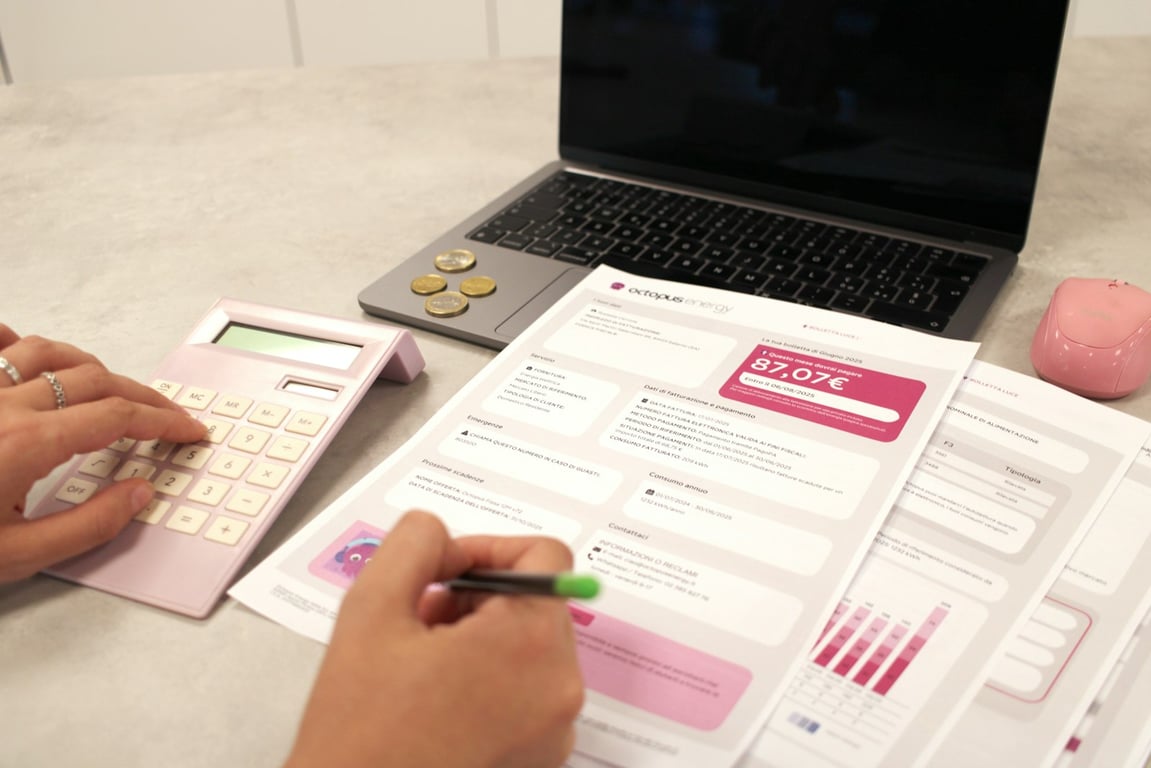
Staffing agency invoicing often turns into a weekly scramble: export payroll, copy rows into client-specific invoice sheets, apply bill-rate multipliers, reconcile totals, and then duplicate everything in QuickBooks and Excel. Here is a practical blueprint to automate the workflow end to end so payroll data becomes client invoices, a master invoice workbook, and posted invoices in QuickBooks Online with fewer manual steps.
Photo by Jakub Żerdzicki on Unsplash
The workflow we are automating (Tuesday → Wednesday)
Tuesday: Payroll is submitted in CheckWriters.
Wednesday: The agency generates invoices for ~20 to 30 clients, and builds:
A per-client invoice sheet.
A master invoice sheet that rolls up invoices across states.
A matching invoice in QuickBooks (so QuickBooks totals match the Excel copy exactly).
Inputs you need (and what to standardize)
1) Payroll export (CheckWriters)
You need a consistent export that includes the columns you invoice from, usually:
Employee name
Department or sub-department
Pay rate
Regular hours
OT hours (if applicable)
CheckWriters supports exporting to Excel and building custom exports via Report Writer.1
2) A source of truth for client multipliers
If bill rates are “pay rate × client-specific multiplier,” you need a clean table like:
Client name (as invoiced)
Regular multiplier
OT multiplier (optional)
State or location rules (optional)
Effective dates (optional)
This is the piece that most often breaks automations when it lives only in a document. Moving it into a database makes it much easier to reference reliably.
Ideal: API-based pull from CheckWriters (if available).
Fallback: A scheduled export dropped into a folder, or a recurring email you can parse.
Step 2: Normalize payroll rows into “billable lines”
Transform each payroll row into a standardized structure:
Client
Worker or assignment
Regular hours and rate
OT hours and rate
Week ending date
Location or state
Step 3: Enrich each row with the right multipliers
Join each row to the client multiplier record so you can calculate:
Regular bill rate = pay rate × regular multiplier
Regular bill amount = regular bill rate × regular hours
OT bill rate = OT pay rate × OT multiplier (or regular multiplier)
OT bill amount = OT bill rate × OT hours
Invoice total per client
Step 4: Generate the Excel deliverables (per client + master)
Create:
One per-client invoice sheet (or one per-client workbook).
One master workbook that aggregates everything.
If you want to keep Excel as the “matching copy,” treat it as an output file generated from the same normalized data used to create QuickBooks invoices.
Step 5: Create invoices in QuickBooks Online
You have two common paths:
Spreadsheet import (good for simpler invoices): QuickBooks Online can import multiple invoices from a CSV, with limits like 100 invoices per import and up to 1,000 rows per spreadsheet (as of June 2026 — check current limits before relying on this). This works for most agencies under 100 clients.
API-based invoice creation (better for complex or high-volume invoices): Use the QuickBooks Online Accounting API to create invoices programmatically, including multiple line items.3
For staffing agencies with client-specific formatting and multi-line invoices, API-based invoice creation is often the more scalable route.
Implementation options (Zapier-first, then “upgrade” when needed)
Many agencies start with an orchestration layer like Zapier and evolve as requirements grow:
Use Zapier to ingest a payroll export and push it through data transformation steps.
Store the multiplier table somewhere structured.
Generate invoice files and then create QuickBooks invoices.
If you also need to automate communications (for example, notifying ops when invoice batches are ready), tools like RingCentral can be part of the broader automation plan.
Common edge cases to plan for
Clients with different invoice layouts.
Multiple states with different rollup requirements in the master sheet.
Re-runs (what happens if payroll export is corrected).
Manual overrides (for one-off billing changes).
Matching requirement: ensuring QuickBooks totals match Excel totals to the cent.
What success looks like (MVP definition)
A good first milestone is:
Payroll export arrives.
Invoices are generated for all clients.
Master invoice workbook is generated.
Invoices are created in QuickBooks.
A reviewer can spot-check 2 to 3 invoices and approve sending.
Then, land-and-expand:
Add more automation (for example, recruiting ops in Bullhorn).
Get help building this
Automating staffing agency invoicing usually breaks at the multiplier lookup step — when client rate tables live in a doc instead of a database, or when QuickBooks import limits force you back to manual entry. If you’ve hit that wall, book a ZoomFlow session — one of our consultants can map out the architecture with you live and identify exactly where the automation should start.
Epic API invoice processing automation for Applied Epic: watch the AP inbox, attach vendor PDFs to the right record, and create activities. See the build plan.
Build a reliable Netlify form to QuickBooks invoice Zapier workflow. Trigger from Netlify form submissions (not email parsing) to prevent duplicate invoices.