Send a weekly BambooHR time off balance report email with Zapier and Gmail. Format PTO balances as an HTML table so HR can scan them without logging in.
If you want a weekly BambooHR time off (PTO) balance report email in your inbox, you can automate it with a scheduled Zapier workflow that pulls a BambooHR report, converts the rows into an HTML table, and sends it through Gmail. The balances show up in the email body, not behind a login link.
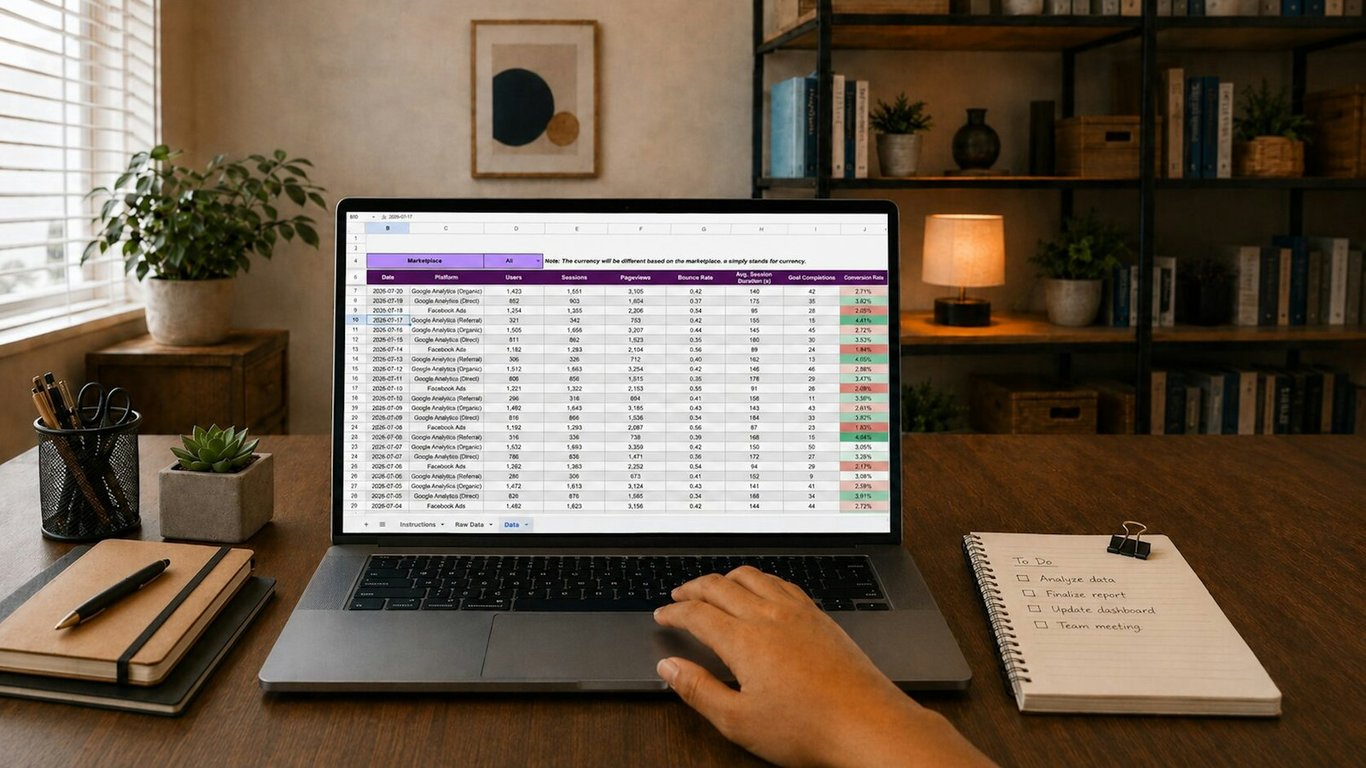
BambooHR time off balance report email: reporting dashboard on a laptop. Photo by Carlos Muza on Unsplash
What the BambooHR time off balance report email includes
A BambooHR report that includes the PTO/time-off balance fields you care about
A Zapier scheduled automation that runs weekly
A Gmail email step that sends a clean HTML table in the message body
Step 1: Create the right BambooHR report (so Zapier can pull it cleanly)
Before you touch Zapier, make sure the report output is stable.
Recommended columns
Keep it simple and predictable:
Employee name (or Employee ID)
PTO policy (if you have multiple)
Current balance
As-of date (optional)
Department or location (optional)
Report gotchas to watch for
Column names matter. If you rename a field after building the Zap, the mapping in Zapier can break or come through blank.
Data types can be inconsistent. Some balance fields come back as text instead of numbers, especially if the report is formatted for humans.
Nulls happen. If someone has no policy assigned yet, expect empty values—plan your formatting to handle blanks.
Step 2: Schedule the workflow in Zapier
You want this to run without anyone clicking anything.
Pick the Every Week event and choose the day and time that match when HR reviews balances.
Tip: If you run payroll on Mondays, schedule this for early Monday morning so the numbers are fresh for the week.
Step 3: Pull the BambooHR report data into Zapier
Depending on your BambooHR setup, you’ll do one of two approaches:
Option A: Use the BambooHR “API Request (Beta)” action (simplest)
Zapier’s BambooHR integration doesn’t include a dedicated “get report” action, but its API Request (Beta) action calls BambooHR’s API using the account you already connected (as of October 2026; check Zapier’s BambooHR app page for current actions):
Add a BambooHR action step and choose API Request (Beta)
Call BambooHR’s saved custom report endpoint with the ID of the report you created in Step 1
Test to confirm the result includes all expected rows and columns
Option B: Use BambooHR’s reporting endpoint via a Webhooks step (most flexible)
If you need full control, use Webhooks by Zapier to call BambooHR’s API directly with an API key.
Use this option when you need more control over report format, filters, or output structure.
Practical rule: If the native BambooHR step doesn’t return data in a usable structure, switch to Webhooks early instead of fighting it.
Step 4: Convert the report rows into an HTML table (the key step)
Your goal is an email that looks like a spreadsheet, without attachments.
What the HTML table should include
At minimum:
A header row
One row per employee
Basic styling so it’s readable (padding + borders)
Formatting tips that prevent ugly emails
Use a fixed header row (bold with a light background color).
Keep numeric fields right-aligned for scanability.
Round balances to 1–2 decimals (or match how your team thinks about PTO).
Example HTML table (copy/paste template)
Replace the placeholder rows with mapped data from Zapier (this is typically done with a “loop” step or a formatter step that builds a single HTML string).
Subject: Include the time window, for example: “PTO balances (weekly) — {{Week of}}”
Body: Paste the HTML output from the formatting step
Gmail-specific gotchas
In Gmail’s Send Email action, set Body Type to HTML. If it stays on plain text, your table shows up as raw HTML code.
Avoid complex CSS. Gmail strips style and head tags, so inline styles are the safest option.
QA checklist (run once, then you’re done)
The report returns all employees (or the correct filtered subset)
The Zap runs on schedule and doesn’t require re-authentication
The email body shows a table (not code)
Empty balances don’t break the layout
The table is readable on mobile (keep columns minimal)
When this breaks (and how to fix it fast)
Someone renames a BambooHR report field: update the Zap mappings and retest.
New PTO policies are added: confirm the report includes them and your table still looks right.
The email suddenly shows raw HTML: check that the Gmail step’s Body Type is still set to HTML.
Need help building this workflow?
A weekly PTO report is a small workflow, but getting the BambooHR data clean and the table readable in real inboxes takes some testing. If you’d rather have it built and tested for you, Connex can set up your BambooHR, Zapier, and Gmail workflow end to end. Book a free discovery call.
A hospitality staffing firm used Bullhorn and Zapier to turn booking, extension, and signed-agreement emails into self-updating tracking for ~100 consultants.